Category: Manuals

stratix 5700 manual

Stratix 5700 Manual: An Overview

The Stratix 5700, built with Rockwell Automation and Cisco technology, offers secure network integration from plant floor to enterprise, utilizing Cisco IOS software.

The Allen-Bradley Stratix 5700 is a Layer 2 managed industrial Ethernet switch designed for robust performance in demanding industrial environments. It seamlessly integrates operational technology (OT) and information technology (IT) networks, leveraging Cisco IOS Network Infrastructure Software for secure and reliable communication.

This switch family, including models like the 1783-BMS06SA (6-port) and 1783-BMS10CGN (10-port), provides scalable solutions for various applications. Key features include optional Power-over-Ethernet (PoE) capabilities, integrated Network Address Translation (NAT), and support for 1588 PTP (Precision Time Protocol).

The Stratix 5700 is built for secure integration with enterprise networks, offering a compact size and a broad range of switching capabilities, making it ideal for industrial automation.

Target Applications

The Stratix 5700 excels in applications demanding high reliability and secure network connectivity within industrial automation systems. It’s well-suited for Ethernet/IP networks, providing robust support for critical infrastructure. Industries benefiting include manufacturing, process control, and material handling.

Its compact size and scalability make it ideal for distributed control systems (DCS) and supervisory control and data acquisition (SCADA) systems. The optional NAT feature enhances security, while PoE versions simplify deployments by reducing cabling requirements.

Furthermore, the Stratix 5700 supports applications needing precise timing synchronization via 1588 PTP, crucial for coordinated automation tasks.
Hardware Specifications

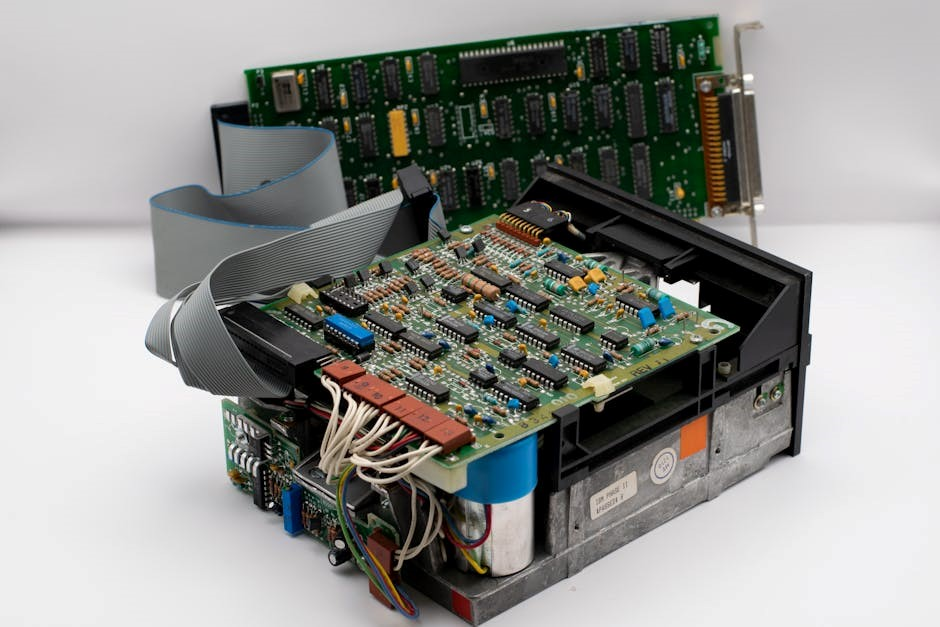
Stratix 5700 switches offer various port configurations, including copper and combo (copper/SFP) options, supporting 10/100/1000 Mbps speeds for flexible networking.

Port Configuration Options

The Stratix 5700 series provides diverse port configurations to accommodate various industrial networking needs. Models like the 1783-BMS06SA feature 6 ports, while the 1783-BMS10CGN boasts 10 ports. These include 8 copper 10/100 ports and 2 combo ports capable of supporting either copper or SFP slots for 10/100/1000 Mbps connectivity.

This flexibility allows for seamless integration with existing infrastructure and future scalability. Combo ports enable the use of fiber optic cabling for extended distances and increased bandwidth. The variety of port options ensures the Stratix 5700 can be tailored to specific application requirements, optimizing network performance and efficiency within industrial environments.

Power-over-Ethernet (PoE) Versions

Stratix 5700 switches are available in Power-over-Ethernet (PoE) versions, simplifying network deployments and reducing cabling costs. PoE enables power delivery alongside data transmission over standard Ethernet cables, eliminating the need for separate power supplies for connected devices like IP phones, wireless access points, and security cameras.

This feature minimizes cabling complexity and installation time, particularly in challenging industrial environments. PoE versions streamline network management and enhance reliability by consolidating power and data onto a single connection. The integrated PoE functionality offers a cost-effective and efficient solution for powering remote devices, improving overall network infrastructure.

Physical Dimensions and Environmental Ratings

Stratix 5700 switches are designed for robust industrial applications, featuring compact dimensions for flexible mounting options. These switches are built to withstand harsh environments, exhibiting resistance to shock, vibration, and extreme temperatures. Specific dimensions vary by model – the 6-port is smaller than the 10-port version.

Environmental ratings ensure reliable operation in demanding conditions. They typically meet or exceed industry standards for electromagnetic compatibility (EMC) and ingress protection (IP). This rugged design guarantees consistent performance in manufacturing facilities, processing plants, and other challenging industrial settings, minimizing downtime and maximizing operational efficiency.

Software and Firmware

The Stratix 5700 utilizes Cisco IOS Network Infrastructure Software, enabling secure integration and enterprise support, alongside manageable firmware updates for optimal performance.

Cisco IOS Network Infrastructure Software

The Stratix 5700 leverages the robust capabilities of Cisco IOS Network Infrastructure Software, providing a familiar and powerful command-line interface for network management. This integration delivers enterprise-class features, including advanced security protocols and comprehensive network diagnostics, directly to the industrial environment.

Utilizing Cisco IOS allows for seamless integration between the plant floor and the broader enterprise network, simplifying IT/OT convergence. The software supports a wide range of networking protocols and offers granular control over network traffic, enhancing performance and reliability. Administrators familiar with Cisco IOS will find a consistent experience, reducing training requirements and streamlining operations. This software foundation ensures a scalable and secure network infrastructure.

Firmware Updates and Management

Maintaining up-to-date firmware is crucial for the Stratix 5700’s optimal performance and security. Rockwell Automation provides regular firmware updates to address vulnerabilities, enhance features, and improve overall system stability. These updates can be applied through various methods, including online downloads and network-based deployment.

Effective firmware management involves establishing a consistent update schedule and thoroughly testing new releases in a non-production environment before widespread implementation. Utilizing network management tools allows for centralized monitoring of firmware versions across multiple switches, simplifying the update process. Proper documentation of firmware changes is also recommended for troubleshooting and audit purposes, ensuring a secure and reliable network.

Configuration Methods

The Stratix 5700 leverages Cisco IOS Network Infrastructure Software, offering familiar configuration methods for network professionals. Configuration can be performed via a command-line interface (CLI) accessed through console, Telnet, or SSH connections. A web-based GUI provides a user-friendly alternative for those preferring a graphical approach.

Network Management Systems (NMS) supporting SNMP are also compatible, enabling centralized configuration and monitoring of multiple switches. Configuration files can be backed up and restored for disaster recovery or to replicate settings across devices. Secure configuration practices, including strong passwords and access control lists, are vital for maintaining network integrity.

Network Features

Stratix 5700 supports Ethernet/IP networks, includes a hardware-based NAT feature for high performance, and offers 1588 PTP for precise timing.

Managed Switch Capabilities

The Stratix 5700 functions as a Layer 2 managed industrial Ethernet switch, providing robust control and visibility over network traffic. This allows for detailed configuration of network parameters, enhancing performance and reliability within industrial environments.

Key capabilities include VLAN configuration for network segmentation, Quality of Service (QoS) settings to prioritize critical data, and port mirroring for network analysis and troubleshooting. The switch supports a variety of port configurations, including copper and SFP slots, offering flexibility in network design.

Furthermore, its integration with Cisco IOS Network Infrastructure Software delivers advanced features and secure operation, making it suitable for demanding industrial applications.

Ethernet/IP Network Support

The Stratix 5700 is specifically designed to seamlessly integrate with and support Ethernet/IP networks, a cornerstone of Rockwell Automation’s Integrated Architecture. This ensures reliable communication between controllers, I/O modules, and other devices on the plant floor.

The switch facilitates efficient data exchange within Ethernet/IP environments, optimizing performance for real-time control and automation applications. It provides the necessary infrastructure for robust and deterministic communication, crucial for maintaining production efficiency and safety.

Its managed capabilities allow for network segmentation and prioritization, further enhancing the reliability and security of Ethernet/IP traffic.

Network Address Translation (NAT) Feature

The Stratix 5700 incorporates an optional, hardware-based Network Address Translation (NAT) feature, enhancing network security and simplifying network architecture. This allows for high-performance translation of private IP addresses to a single public IP address, facilitating secure remote access.

The NAT feature minimizes the need for re-addressing devices when integrating with enterprise networks, streamlining deployment and reducing complexity. It provides a layer of defense against unauthorized access, protecting critical industrial control systems.

This integrated NAT capability delivers robust performance without impacting network speed or reliability.

1588 PTP (Precision Time Protocol)

The Stratix 5700 supports the 1588 Precision Time Protocol (PTP), crucial for applications demanding precise time synchronization across the network. This feature enables deterministic communication and coordinated control in industrial automation systems.

Implementing 1588 PTP minimizes latency and jitter, ensuring accurate timing for processes like motion control, data acquisition, and process synchronization. It’s vital for applications requiring sub-microsecond accuracy, improving overall system performance and reliability.

The Stratix 5700’s PTP support facilitates seamless integration with time-sensitive applications and enhances network efficiency.

Security Features

Stratix 5700 delivers robust network security infrastructure, enabling secure integration with enterprise networks via Cisco IOS software and features.

Network Security Infrastructure

The Stratix 5700 leverages a comprehensive network security infrastructure, built upon the foundation of Cisco IOS Network Infrastructure Software. This integration provides robust security features essential for protecting critical industrial networks. The switch facilitates secure communication between plant floor devices and enterprise systems, mitigating potential cyber threats.

Key security elements include support for various security protocols and features designed to safeguard network data and access. This allows for granular control over network traffic and user permissions, enhancing overall network resilience. The Stratix 5700 is designed to meet the demanding security requirements of modern industrial environments, ensuring reliable and protected operation.

Secure Integration with Enterprise Networks

The Stratix 5700 excels in secure integration with existing enterprise networks, thanks to its utilization of Cisco IOS network infrastructure software. This compatibility streamlines the connection between operational technology (OT) and information technology (IT) environments, fostering seamless data exchange.

The switch’s design prioritizes secure communication protocols and access controls, minimizing vulnerabilities during integration. This allows businesses to leverage existing IT security infrastructure while extending it to the plant floor. By enabling secure connectivity, the Stratix 5700 facilitates improved visibility, control, and data-driven decision-making across the entire organization, enhancing operational efficiency and security.

Installation and Configuration

Stratix 5700 installation involves initial setup, connecting to existing networks, and configuring IP addresses for seamless integration into industrial environments.

Initial Setup and Configuration

The Stratix 5700 requires careful initial setup for optimal performance. Begin by physically installing the switch, ensuring proper grounding and environmental considerations are met. Next, connect a console cable for initial configuration access via Cisco IOS.

Power on the device and follow the on-screen prompts to establish basic network settings. This includes setting a unique device name, configuring a secure password for access, and defining the initial IP address.

Verify connectivity by pinging the switch from a connected workstation. Proper initial configuration is crucial for secure and reliable operation within your industrial network.

Connecting to Existing Networks

Integrating the Stratix 5700 into an existing network requires careful planning. Determine the appropriate connection points and ensure compatibility with existing network infrastructure. Utilize the 10/100/1000 copper and SFP ports for flexible connectivity options.

When employing the optional Network Address Translation (NAT) feature, configure it to facilitate communication between the plant floor and enterprise networks. Verify IP address schemes to avoid conflicts and ensure proper routing.

Test connectivity thoroughly after integration, confirming data flow and network security protocols are functioning as expected. Secure integration is paramount for maintaining network stability.

IP Address Configuration

Proper IP addressing is crucial for Stratix 5700 operation. Access the switch’s configuration interface via a connected workstation. Assign a static IP address or configure Dynamic Host Configuration Protocol (DHCP) for automatic assignment.

When using static IPs, ensure addresses are within the network’s valid range and do not conflict with other devices. Configure the subnet mask and default gateway accurately for network communication.

For NAT-enabled networks, configure NAT settings alongside IP addresses. Verify connectivity by pinging the switch from other network devices. Document all IP address assignments for future reference and troubleshooting.

Troubleshooting

Common issues with the Stratix 5700 can be resolved using diagnostic tools and factory reset procedures, ensuring network stability and optimal performance.

Common Issues and Solutions

Connectivity problems are frequently encountered, often stemming from incorrect IP address configurations or cabling issues. Verify physical connections and IP settings first. Power-over-Ethernet (PoE) failures can occur; ensure sufficient power supply and compatible devices. NAT feature malfunctions might require a configuration review, checking address translation rules.

Firmware glitches can be addressed through updates. If the switch becomes unresponsive, a factory reset may be necessary, but remember this will erase the current configuration. Network loops can disrupt communication; utilize spanning tree protocol to prevent them. Regularly monitor switch logs for error messages, providing valuable diagnostic information. Consult the Rockwell Automation knowledge base for specific error codes and solutions.

Diagnostic Tools

Cisco IOS CLI provides robust diagnostic capabilities, including show commands to display switch status, interface details, and routing information. Ping and Traceroute utilities verify network connectivity and identify potential bottlenecks. Built-in logging captures system events and error messages, crucial for troubleshooting.

Port mirroring allows capturing network traffic for analysis with external tools like Wireshark. SNMP enables remote monitoring and management via network management systems. Web-based interface offers a user-friendly overview of switch health and performance. Utilize cable testing equipment to identify faulty cabling. Regularly review switch logs for proactive issue detection and preventative maintenance.

Factory Reset Procedures

Caution: A factory reset will erase the current configuration. Before proceeding, back up your settings if possible. The primary method involves using the Cisco IOS CLI. Access the switch via console or Telnet, then enter privileged EXEC mode. Execute the write erase command followed by the reload command to confirm;

Alternatively, a physical reset button may be present on the switch (refer to hardware documentation for location). Press and hold this button for a specified duration (typically 10-15 seconds) while the switch is powered on. This initiates the reset process. Verify successful reset by checking default IP address and login credentials.

Advanced Configuration

Stratix 5700 supports advanced features like VLAN configuration, Quality of Service (QoS) settings, and port mirroring for optimized network performance and security.

VLAN Configuration

Virtual LANs (VLANs) on the Stratix 5700 enhance network security and segmentation. Configuring VLANs logically divides a network, improving performance and simplifying administration. You can assign ports to specific VLANs, isolating traffic and controlling broadcast domains.

This allows for grouping devices based on function or department, regardless of physical location. The Stratix 5700 supports standard 802.1Q VLAN tagging. Configuration involves defining VLAN IDs and assigning ports to those VLANs via the command-line interface (CLI) or web-based interface. Proper VLAN planning is crucial for optimal network design and security implementation within industrial environments.

Quality of Service (QoS) Settings

Quality of Service (QoS) features within the Stratix 5700 prioritize network traffic, ensuring critical applications receive adequate bandwidth. This is vital in industrial automation where real-time data transmission is paramount. QoS settings allow administrators to classify traffic based on various criteria, including port, VLAN, or application type.

Prioritization mechanisms, such as Weighted Fair Queuing (WFQ), can be implemented to allocate bandwidth dynamically. Configuring QoS minimizes latency and packet loss for time-sensitive applications like Ethernet/IP, improving overall system responsiveness and reliability. Careful planning and configuration are essential for effective QoS implementation.

Port Mirroring

Port mirroring, also known as port spanning, is a valuable diagnostic tool within the Stratix 5700. It allows network administrators to copy traffic from one or more ports to a designated monitoring port. This mirrored traffic can then be analyzed using network analyzers or intrusion detection systems.

This feature is crucial for troubleshooting network issues, identifying security threats, and monitoring network performance without disrupting normal operations. Configuration involves selecting source ports to monitor and a destination port for receiving the mirrored traffic. Proper setup ensures comprehensive network visibility and efficient problem resolution.
Product Variations

The Stratix 5700 series includes 6-port (1783-BMS06SA) and 10-port (1783-BMS10CGN) models, offering flexibility for diverse industrial networking needs.

Stratix 5700 6-Port Model (1783-BMS06SA)

The 1783-BMS06SA Stratix 5700 model is a compact, 6-port managed industrial Ethernet switch designed for smaller network deployments. It delivers robust performance and security features, leveraging Cisco IOS Network Infrastructure Software for seamless integration.

This model often offers Power-over-Ethernet (PoE) versions, simplifying cabling and reducing installation costs by providing power and data over a single Ethernet cable. It’s ideal for applications requiring remote device powering, such as IP phones or wireless access points. The 12-digit UPC code is 1585J-M8TBJM-1M9.

Despite its smaller size, it supports essential managed switch capabilities, ensuring reliable and secure communication within industrial environments.

Stratix 5700 10-Port Model (1783-BMS10CGN)

The 1783-BMS10CGN Stratix 5700 model is a 10-port managed industrial Ethernet switch, offering expanded connectivity for more complex network architectures. It features 8 copper 10/100 ports and 2 combo ports (copper or SFP slot) supporting 10/100/1000 speeds, providing flexibility for various network media.

This switch incorporates full firmware functionality, including 1588 PTP (Precision Time Protocol) and Network Address Translation (NAT) for enhanced performance and security. It’s designed for robust Ethernet/IP network support and secure integration with enterprise networks, utilizing Cisco IOS software.

The Stratix 5700 10-port model is a scalable solution for industrial automation applications demanding reliable and secure communication.
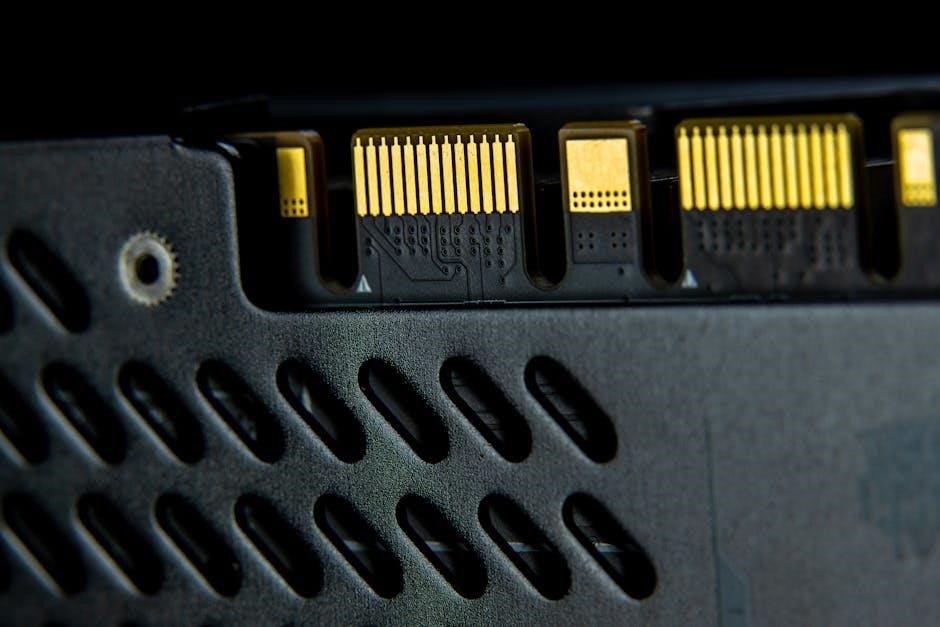
Ordering Information

The Stratix 5700 models, like the 1783-BMS06SA and 1783-BMS10CGN, are identifiable by their 12-digit UPC codes, including 1585J-M8TBJM-1M9.

UPC Codes and Part Numbers (e.g., 1585J-M8TBJM-1M9)

Identifying Stratix 5700 switch models relies heavily on accurate part numbers and Universal Product Codes (UPC). The 6-port model, 1783-BMS06SA, features a specific 12-digit UPC, notably 1585J-M8TBJM-1M9, crucial for ordering and inventory management.

The 10-port variant, 1783-BMS10CGN, possesses a distinct UPC for differentiation. These codes ensure correct procurement and compatibility within industrial automation systems. Rockwell Automation utilizes these identifiers for streamlined logistics and support.

Confirming the correct UPC is vital when ordering replacement parts or expanding network infrastructure. Utilizing the correct part number guarantees compatibility and proper functionality within your Allen-Bradley control system.

Compatibility and Accessories

Stratix 5700 switches demonstrate robust compatibility within Rockwell Automation’s Integrated Architecture ecosystem, seamlessly integrating with Logix controllers and other network devices. They support Ethernet/IP networks, facilitating communication across industrial protocols.

Accessories enhance functionality; SFP modules for combo ports provide fiber optic connectivity options, extending network reach. Power supplies and mounting hardware are available for diverse installation scenarios. Compatibility extends to Cisco IOS Network Infrastructure Software for advanced management.

Ensure accessory selection aligns with the specific Stratix 5700 model (6-port or 10-port) and desired network configuration for optimal performance and reliable operation.


voyager legend bluetooth manual

Voyager Legend Bluetooth Manual: A Comprehensive Guide

This manual provides detailed instructions for the Poly Voyager Legend headset. It covers pairing, controls, troubleshooting, and optimizing performance,
addressing common issues like the 3-6 PM disconnection problem. Resetting tips are also included.

The Poly (formerly Plantronics) Voyager Legend is a premium Bluetooth headset designed for professionals requiring clear audio and all-day comfort. This wireless headset excels in various environments, from bustling offices to mobile work scenarios. It’s renowned for its exceptional call quality, noise-canceling technology, and extended battery life, making it a popular choice for frequent callers and unified communications (UC) applications.

This guide serves as a comprehensive resource for maximizing your Voyager Legend experience. Whether you’re a first-time user or a seasoned pro, you’ll find detailed instructions on pairing with mobile phones and computers, understanding the headset’s controls, and troubleshooting common issues. We’ll also delve into specific problems reported by users, such as the intermittent disconnection issue occurring between 3-6 PM, and provide effective solutions. Furthermore, we’ll cover essential maintenance practices, including firmware updates and battery optimization, to ensure your Voyager Legend continues to perform at its best for years to come.

Unboxing and Component Overview

Upon opening your Poly Voyager Legend package, you should find several key components. These typically include the Voyager Legend headset itself, a micro-USB charging cable for powering and charging the device, and a compact USB adapter for convenient connection to various power sources. A quick start guide is also included, offering a brief overview of the setup process and basic functionalities.

Carefully inspect each component for any signs of damage; The headset features a comfortable ear cushion, adjustable headband, and intuitive control buttons. The charging port is located on the headset, and the USB adapter is designed for easy portability. Familiarize yourself with the location of these components before proceeding. The Voyager Legend UC variant, a deluxe version, may include additional accessories tailored for unified communications platforms. Retain the original packaging for potential warranty claims or future transport. Proper component identification ensures a smooth setup and optimal usage experience.

Charging the Headset

To charge your Poly Voyager Legend headset, connect the provided micro-USB cable to the charging port located on the headset itself. Then, plug the other end of the cable into a USB power source, such as a computer USB port or a USB wall adapter. During charging, the LED indicator will illuminate, typically displaying a red or amber color to signify that the headset is receiving power.

A full charge typically takes approximately 2.3 hours, providing up to 7 hours of talk time. It’s recommended to fully charge the headset before its initial use. While charging, you can continue to use the headset, but the charging time may be extended. Avoid using damaged USB cables or power adapters, as they could potentially harm the device. Once fully charged, the LED indicator will change to a different color, usually green, indicating completion. Regularly charging your Voyager Legend ensures optimal performance and extended battery life for uninterrupted use throughout the day.

Powering On and Off

Powering on your Poly Voyager Legend headset is straightforward. Locate the power/call control button on the earcup; Press and hold this button for approximately two seconds until the LED indicator illuminates and you hear an audio cue, confirming the headset is powered on. The headset will automatically attempt to reconnect to previously paired devices.

To power off the headset, repeat the same process – press and hold the power/call control button for around two seconds. The LED will typically flash or change color, and an audio cue will indicate that the headset is shutting down. When powered off, the headset conserves battery life. It’s important to fully power off the headset when not in use for extended periods. Avoid repeatedly pressing the button briefly, as this may inadvertently answer or end calls instead of powering the device on or off. Proper powering on and off ensures efficient battery management and reliable operation.

Bluetooth Pairing Process

Initiating the Bluetooth pairing process with your Poly Voyager Legend is essential for wireless connectivity. First, ensure your headset is charged and powered off. Then, press and hold the call control button for approximately seven seconds. This action puts the headset into pairing mode, indicated by alternating red and blue flashing LED lights and an audio prompt.

Next, activate Bluetooth on your smartphone or computer and set it to search for available devices. The Voyager Legend should appear in the list of discoverable devices. Select it to initiate the pairing sequence. You may be prompted to enter a passcode; if so, enter “0000” (four zeros). Once successfully paired, the LED will typically turn solid blue, and an audio confirmation will play. Remember that the Voyager Legend can store multiple paired devices, but only connect to one at a time. If pairing fails, try resetting the headset or clearing the Bluetooth cache on your device.

Pairing with Mobile Phones

Pairing your Poly Voyager Legend with a mobile phone unlocks hands-free calling and audio streaming. Begin by ensuring the headset is fully charged and in pairing mode – achieved by holding the call control button for seven seconds until the LED flashes red and blue. On your smartphone (iOS or Android), navigate to the Bluetooth settings menu. Activate Bluetooth if it’s not already enabled, and initiate a scan for available devices.

The Voyager Legend should appear in the list as a discoverable device. Select it to begin the pairing process. Your phone may request a passcode; enter “0000” if prompted. Upon successful pairing, the headset’s LED will turn solid blue, and your phone will indicate a connected status. You can then configure the Voyager Legend as your preferred audio device for calls and media. If encountering issues, verify Bluetooth is enabled on both devices, and try resetting the headset. Some phones may require granting permission for the headset to access contacts and call history.

Pairing with Computers

Connecting your Poly Voyager Legend to a computer expands its functionality for online meetings, voice calls, and multimedia consumption. First, place the headset into pairing mode by pressing and holding the call control button for approximately seven seconds until the LED indicator alternates between red and blue. On your computer (Windows or macOS), access the Bluetooth settings. This is typically found within the system settings or control panel.

Enable Bluetooth and initiate a device scan. The Voyager Legend should appear in the list of available devices. Select it to initiate the pairing process. You may be prompted to enter a pairing code; if so, use “0000”. Once paired, the headset’s LED will display a solid blue light. Configure the Voyager Legend as your default audio input and output device within your computer’s sound settings. For optimal performance with Unified Communications (UC) applications, ensure the headset is recognized and configured correctly within the application’s settings. If pairing fails, try restarting both the headset and your computer.

Understanding the Headset Controls

The Poly Voyager Legend features intuitive controls for managing calls, volume, and other functions. The primary call control button, located on the earcup, handles answering, ending, and muting calls. A single press answers an incoming call, while a short press during a call ends it. Pressing and holding this button initiates voice assistant integration on compatible devices.

Volume adjustment is managed via dedicated up and down buttons, conveniently positioned for easy access. These buttons control the audio level for both calls and multimedia playback. The multifunction button allows for redialing the last number called. Understanding the LED indicators is crucial; solid blue signifies a successful Bluetooth connection, while alternating red and blue indicates pairing mode. A flashing red light signals low battery. Familiarizing yourself with these controls ensures seamless operation and maximizes the headset’s capabilities. Refer to the quick start guide for a visual representation of the control layout.

Call Controls: Answer, End, and Mute

Managing calls with the Voyager Legend is straightforward. To answer an incoming call, simply press the primary call control button located on the earcup once. To end an active call, perform a short press of the same button. If you need to temporarily silence yourself during a conversation, utilize the mute function. A press and hold of the call control button activates the mute feature, indicated by an audio tone.

Releasing the button deactivates mute. The headset also supports call transfer and three-way calling, depending on your connected device and service provider. Double-pressing the call control button typically redials the last number dialed. Understanding these simple controls allows for efficient call management, ensuring clear communication. Remember to check your mobile device’s settings for compatibility with all call control features. Proper use of these functions enhances the overall call experience with the Voyager Legend.

Volume Adjustment

Adjusting the volume on your Voyager Legend is easily accomplished using dedicated controls. Located on the earcup, you’ll find volume up and volume down buttons. A single press of the volume up button increases the audio level, while a single press of the volume down button decreases it. The headset provides audible cues to indicate the current volume level as you make adjustments.

For finer control, you can press and hold the volume buttons to continuously adjust the volume. Be mindful of your listening environment and avoid excessively high volumes to protect your hearing. The Voyager Legend remembers your last volume setting, so you won’t need to readjust it each time you connect. Some mobile devices may also allow volume control directly from the phone, overriding the headset’s settings. Experiment to find the optimal volume level for clear and comfortable audio during calls and multimedia playback.

Voice Assistant Integration

The Voyager Legend seamlessly integrates with popular voice assistants like Siri, Google Assistant, and others, offering hands-free control. To activate your voice assistant, simply press and hold the dedicated voice assistant button on the headset. The specific button location may vary slightly depending on the model, but it’s generally easily accessible on the earcup.

Once activated, you can issue voice commands to make calls, send messages, play music, get directions, and more. Ensure your smartphone is paired with the headset and has voice assistant functionality enabled. The Voyager Legend will relay your voice commands to your phone, which then processes them through the voice assistant. Compatibility and functionality may differ based on your smartphone’s operating system and the specific voice assistant you’re using. Refer to your smartphone’s manual for detailed instructions on setting up and using voice assistants.

Troubleshooting Bluetooth Connection Issues

Experiencing Bluetooth connectivity problems with your Voyager Legend? Several steps can resolve common issues. First, ensure Bluetooth is enabled on both your headset and the connecting device (phone, computer, etc.). Verify the headset is in pairing mode – typically indicated by a flashing LED. If pairing fails, try “forgetting” the Voyager Legend from your device’s Bluetooth settings and re-pairing it.

Interference from other wireless devices can disrupt the connection. Move away from potential sources of interference like microwaves or other Bluetooth devices. A common issue, particularly between 3-6 PM, involves random disconnections during calls. Resetting the headset often resolves this. If problems persist, check for firmware updates via the Plantronics Hub software. Finally, ensure the headset is within the Bluetooth range (approximately 30 feet) and that there are no obstructions. Reset tips are available for this device.

Addressing Disconnection Problems (3-6 PM Issue)

Many Voyager Legend users report intermittent Bluetooth disconnections specifically between 3:00 PM and 6:00 PM during calls. This peculiar issue, widely discussed in online support communities, doesn’t seem tied to a specific device or phone model, suggesting a potential internal headset behavior. A primary solution is a complete headset reset. This clears the pairing list and restores factory settings, often resolving the timing-related disconnects.

Consider updating the headset’s firmware using the Plantronics Hub software. Newer firmware versions may contain bug fixes addressing this specific problem. Ensure your phone’s operating system is also up-to-date, as compatibility issues can contribute to instability. If the issue persists, try re-pairing the headset after the reset and firmware update. Temporarily disable other Bluetooth devices nearby to rule out interference. If none of these steps resolve the problem, contact Plantronics support for further assistance.

Resetting the Voyager Legend

Resetting your Voyager Legend can resolve various issues, including pairing problems and unexpected behavior. There are two primary reset methods. The first, a soft reset, involves powering off the headset and then pressing and holding the Call/Answer button for approximately 10 seconds until the LED flashes red and blue. This clears temporary settings without erasing paired devices.

For more significant issues, perform a factory reset. With the headset powered off, simultaneously press and hold the Volume Up and Mute buttons for 10 seconds. The LED will cycle through colors, indicating the reset process. This will erase all paired device information, requiring you to re-pair the headset with your phone or computer. After a reset, always test the headset’s functionality, including call quality and Bluetooth connectivity. Refer to the Plantronics Hub software for guided reset instructions and troubleshooting tips. A reset can often resolve the frustrating 3-6 PM disconnection issue.

Firmware Updates and Maintenance

Maintaining up-to-date firmware is crucial for optimal Voyager Legend performance and stability. Poly (Plantronics) regularly releases firmware updates that address bugs, improve Bluetooth connectivity, and enhance audio quality. The Plantronics Hub software is the primary tool for checking and installing these updates. Connect your headset to your computer via USB and launch the Hub application.

The software will automatically detect available updates and guide you through the installation process. Ensure your computer has a stable internet connection during the update. Firmware updates can often resolve the intermittent disconnection issues experienced between 3-6 PM. Beyond updates, regular cleaning is essential. Use a soft, dry cloth to wipe down the headset, paying attention to the ear cushions and microphone. Avoid using harsh chemicals or liquids. Proper maintenance extends the lifespan of your Voyager Legend and ensures consistent performance.

Optimizing Battery Life

Maximizing the battery life of your Voyager Legend ensures uninterrupted use throughout the day. Several factors influence battery performance. Lowering the volume can significantly extend talk time, as the headset consumes more power at higher volumes. Disabling features you don’t frequently use, such as voice assistant integration when not needed, also conserves energy.

Proper charging habits are vital. While the headset supports quick charging, avoid leaving it plugged in for extended periods after it’s fully charged, as this can degrade the battery over time. Store the headset in a cool, dry place when not in use. Consider using the included charging case for additional power on the go. Addressing Bluetooth connection issues, like the 3-6 PM disconnections, can also indirectly improve battery life by preventing constant reconnection attempts. Regular firmware updates often include battery optimization improvements.

Understanding LED Indicators

The Voyager Legend utilizes LED indicators to communicate its status effectively. A solid blue light generally signifies the headset is powered on and connected to a paired device. Flashing blue indicates pairing mode, actively searching for a Bluetooth connection. A red flashing light typically signals low battery, prompting you to charge the device. Understanding these basic indicators is crucial for troubleshooting.

Specific flash patterns can convey more detailed information. For instance, a rapid flashing red light might indicate a critical error or the need for a reset. Refer to the full user manual for a comprehensive list of LED behaviors. During calls, a steady blue light confirms an active connection. If you experience Bluetooth connection issues, particularly the 3-6 PM disconnection problem, observing the LED can provide clues. A pulsing white light often indicates voice assistant activation. Regularly checking the LED helps maintain optimal headset performance.

Audio Quality and Troubleshooting

The Voyager Legend is renowned for its clear audio quality, but occasional issues can arise. If you experience muffled sound, first ensure the headset is properly positioned and the microphone isn’t obstructed; Check the volume levels on both the headset and the connected device. Poor audio can also stem from Bluetooth interference; try moving away from potential sources like microwaves or other wireless devices.

Troubleshooting steps include restarting both the headset and the paired device. If the problem persists, try unpairing and re-pairing the devices. The 3-6 PM disconnection issue, reported by some users, may require a factory reset. Ensure the firmware is up-to-date, as updates often include audio enhancements and bug fixes. If using with UC applications, verify compatibility and settings. Cleaning the headset’s earcushions and microphone port can also improve audio clarity. Experiment with different audio profiles on your device for optimal sound.

Using the Headset with UC Applications

The Voyager Legend UC is specifically designed for Unified Communications (UC) applications like Microsoft Teams, Zoom, and Skype for Business, offering seamless integration and optimized performance; To ensure compatibility, verify that your UC platform supports Bluetooth headsets and that the Voyager Legend is listed as a certified device. Proper configuration within the UC application is crucial; select the Voyager Legend as both the audio input and output device.

Some UC platforms may require specific settings adjustments for optimal call quality and feature functionality. Check the application’s documentation for recommended settings. Ensure the headset’s firmware is up-to-date, as updates often include enhancements for UC compatibility. If experiencing issues, try restarting both the headset and the UC application. Troubleshooting steps may also involve checking audio permissions within your operating system. Utilizing the Voyager Legend’s dedicated UC button can streamline call control within these applications.

Safety and Warranty Information

Prioritize safety when using the Voyager Legend. Avoid prolonged exposure to high volumes, as this can damage your hearing. Do not use the headset while operating vehicles or machinery where situational awareness is critical. Keep the device dry and avoid extreme temperatures. Regularly clean the earpads with a soft, damp cloth. Discontinue use if you experience discomfort or irritation.

The Voyager Legend is covered by a limited warranty against defects in materials and workmanship. The standard warranty period is one year from the date of purchase, but may vary by region. Warranty coverage does not extend to damage caused by misuse, accidents, or unauthorized modifications. To initiate a warranty claim, contact Poly customer support with proof of purchase. Review the full warranty terms and conditions available on the Poly website for detailed information regarding coverage and limitations. Proper handling and care will maximize the lifespan of your headset.

Frequently Asked Questions (FAQ)

Q: My Voyager Legend keeps disconnecting between 3-6 PM. A: This is a known issue; try resetting the headset or updating its firmware. Interference from other devices may also contribute. Q: How do I reset my Voyager Legend? A: Press and hold the Call/Answer and Volume Down buttons simultaneously for several seconds until the LED flashes. Q: Can I use the Voyager Legend with UC applications? A: Yes, the Voyager Legend UC version is specifically designed for Unified Communications, offering optimized compatibility.

Q: What do the LED indicators mean? A: Refer to the manual for a detailed explanation of each LED color and flashing pattern. Q: How do I pair the headset with my computer? A: Enable Bluetooth on your computer and select the Voyager Legend from the list of available devices. Q: My headset won’t pair. A: Ensure Bluetooth is enabled and the headset is in pairing mode. Resetting the headset often resolves pairing issues. Q: Where can I find firmware updates? A: Visit the Poly support website and download the Poly Link software.

cove dishwasher manual

Cove Dishwasher Manual: A Comprehensive Guide

This manual provides detailed instructions for optimal Cove dishwasher performance, covering installation, operation, maintenance, and troubleshooting for all models․

Understanding Your Cove Dishwasher

Your Cove dishwasher represents a significant investment in kitchen technology, designed for superior cleaning and quiet operation․ This section aims to familiarize you with its core functionalities and features․ Cove dishwashers are engineered with advanced wash systems, utilizing precision jets and optimized water filtration to deliver sparkling results․

Before initial use, carefully review this manual to understand the dishwasher’s capabilities and limitations․ Pay close attention to loading guidelines, detergent recommendations, and cycle selections․ Proper usage ensures longevity and peak performance․ Understanding the model number and serial number location (detailed later in this guide) is crucial for accessing support and warranty information․ Cove prioritizes both performance and user experience, offering a streamlined interface and intuitive controls․ Familiarizing yourself with these elements will unlock the full potential of your appliance․

Model and Serial Number Location

Locating your Cove dishwasher’s model and serial number is essential for warranty claims, service requests, and accessing specific product information․ These numbers uniquely identify your appliance and are crucial for accurate support․ The Model Number Tag, as indicated in official documentation, is the primary location for this information․

You will find this tag affixed to the appliance itself․ Typically, it’s situated within the dishwasher door frame, often along the side or top edge when the door is fully opened․ The serial number is printed directly alongside the model number on this tag․ Carefully record both numbers in a safe place for future reference․ Having this information readily available will expedite any service interactions and ensure you receive the correct parts or assistance tailored to your specific Cove dishwasher model․

Decoding the Model Number

Understanding the Cove dishwasher model number provides insights into the appliance’s features and specifications; While a comprehensive breakdown isn’t publicly available, the alphanumeric code offers key identifiers․ The initial characters, such as “DW,” clearly denote “Dishwasher,” establishing the appliance type․ Subsequent digits and letters represent specific characteristics like width – indicated by “24” for a 24-inch model – and potentially internal configurations․

Although a detailed key isn’t broadly published, the model number assists in pinpointing compatible parts and accessing tailored documentation․ It’s vital when contacting customer service or ordering replacements․ Referencing the complete model number ensures accurate identification, preventing delays and incorrect part shipments․ While the intricacies remain proprietary, the model number serves as a unique identifier for your Cove dishwasher, streamlining support and maintenance processes․

Electrical Specifications and Power Requirements

Cove dishwashers require a dedicated 120-volt, 60Hz electrical circuit, typically with a 15-amp breaker․ Proper electrical connection is crucial for safe and efficient operation․ Avoid using extension cords or adapters, as they can compromise performance and pose a safety hazard․ The dishwasher must be grounded according to local electrical codes․

Before installation, verify your home’s electrical system meets these requirements․ Incorrect wiring can lead to malfunction or damage․ Consult a qualified electrician if you are unsure about any aspect of the electrical connection․ The power consumption will vary slightly depending on the specific model and cycle selected, but generally falls within a standard range for residential dishwashers․ Always disconnect power before performing any maintenance or repairs․

Initial Setup and Installation

Proper installation ensures optimal performance and longevity․ This involves connecting the water supply, installing the drain hose, and verifying electrical connections are secure․

Water Supply Connection

Connecting the water supply is a crucial step in the installation process․ Ensure a dedicated hot water line is used, as this maximizes cleaning performance․ A 3/8-inch compression fitting is typically required for connection to the dishwasher’s inlet valve․ Before connecting, thoroughly flush the water line to remove any debris or sediment that could potentially clog the valve․

Always use new supply hoses; do not reuse old ones․ Wrap the threaded connections with Teflon tape to prevent leaks․ Carefully tighten the fittings, avoiding over-tightening, which can damage the valve or hose․ After connection, slowly turn on the water supply and meticulously check for any leaks at the connection points․ If leaks are detected, immediately shut off the water and re-tighten the fittings or replace the Teflon tape․ Proper water pressure is essential for optimal dishwasher operation; refer to the electrical specifications section for recommended pressure ranges․

Drainage Installation

Proper drainage is vital for preventing water buildup and ensuring efficient dishwasher operation․ The drain hose, typically 5/8-inch in diameter, must be connected to a household drain with an air gap․ An air gap prevents wastewater from flowing back into the dishwasher, maintaining sanitation․ Avoid connecting the drain hose directly into a garbage disposal unless a knockout plug has been removed; otherwise, it could cause backups․

Securely clamp the drain hose to the drain connection to prevent accidental dislodgement․ Ensure the hose is not kinked or crushed, as this restricts water flow․ The drain hose should be elevated between the dishwasher and the drain connection, typically at least 20 inches high, to facilitate gravity drainage․ Regularly inspect the drain hose for any signs of damage or blockage․ If a blockage occurs, disconnect the hose and flush it with water to remove any obstructions․

Loading Your Cove Dishwasher Correctly

Optimal loading maximizes cleaning performance and prevents damage to your dishes․ Arrange items so water can reach all surfaces; avoid overcrowding․ Place larger items on the lower rack, such as pots, pans, and baking dishes, facing the spray arm․ Ensure tall items don’t block the upper rack’s spray arm rotation․

The upper rack is designed for glasses, cups, and smaller items․ Secure delicate glassware to prevent movement during the wash cycle․ Silverware should be loaded in the silverware basket with handles down for thorough cleaning․ Alternate utensil placement to avoid nesting․ Avoid placing plastics directly over heating elements․ Check that nothing protrudes through the bottom of the rack, obstructing the lower spray arm․ Proper loading ensures efficient water circulation and sparkling clean results․

Operating Your Cove Dishwasher

This section details the dishwasher’s controls and cycles, ensuring efficient and effective cleaning․ Familiarize yourself with the panel for optimal performance and results․

Control Panel Overview

The Cove dishwasher control panel is designed for intuitive operation, offering a range of customizable settings to suit your specific dishwashing needs․ At the heart of the panel is the power button, initiating or halting the wash cycle․ Adjacent to this, you’ll find the cycle selection dial, allowing you to choose from pre-programmed washes like Normal, Heavy, Delicate, and Quick․

Further options include modifications for wash temperature, rinse aid level, and the inclusion of sanitize features․ A digital display clearly indicates the selected cycle, remaining time, and any active error codes․ Dedicated buttons provide access to advanced functions such as Delay Start, enabling you to schedule washes for off-peak hours․ The panel also features indicators for low rinse aid and detergent levels, ensuring optimal cleaning performance․ Understanding each button and display element is crucial for maximizing your Cove dishwasher’s capabilities․

Wash Cycle Selection

Cove dishwashers offer a variety of wash cycles designed to handle different types of loads and soil levels․ The Normal cycle is ideal for everyday dishware with moderate food residue, providing a balance of cleaning power and energy efficiency․ For heavily soiled pots and pans, the Heavy cycle utilizes increased water pressure and temperature․

Delicate cycle provides a gentle wash for fragile items like glassware and china, minimizing the risk of breakage․ The Quick cycle offers a faster wash for lightly soiled dishes when time is limited․ A Sanitize cycle utilizes high temperatures to eliminate bacteria and germs, ensuring hygienic cleaning; Additionally, an Auto cycle intelligently adjusts wash parameters based on soil sensors․ Selecting the appropriate cycle ensures optimal cleaning performance and protects your valuable dishware․

Detergent Usage Guidelines

Proper detergent usage is crucial for achieving sparkling clean dishes․ Cove dishwashers are compatible with both powder, gel, and tablet detergents․ However, always use a detergent specifically formulated for automatic dishwashers; hand dish soap will create excessive suds and potentially damage the appliance․

The amount of detergent needed depends on water hardness and soil level․ Refer to the detergent manufacturer’s instructions for recommended dosage․ Generally, 1-2 tablespoons of powder or gel, or one detergent tablet, are sufficient for a full load․ Avoid overfilling the detergent dispenser, as this can leave residue on dishes․ For hard water areas, consider using a rinse aid to enhance drying and prevent spotting․ Ensure the detergent is fresh and stored in a cool, dry place to maintain its effectiveness․

Using Rinse Aid

Rinse aid significantly improves drying performance and prevents water spots, especially in hard water conditions․ Cove dishwashers feature an automatic rinse aid dispenser․ To fill the dispenser, locate it within the detergent compartment and carefully pour rinse aid until the indicator window shows full․

The rinse aid dispenser has adjustable settings to control the amount dispensed․ Start with the middle setting and adjust as needed based on your water hardness and desired results․ If you notice spotting or streaking, increase the setting․ Conversely, if residue appears on dishes, decrease the setting․ Regularly check the rinse aid level and refill as necessary to maintain optimal performance․ Using rinse aid contributes to brighter, cleaner dishes and reduces the need for hand-drying, saving you time and effort․

Maintenance and Cleaning

Regular cleaning ensures peak performance and longevity of your Cove dishwasher․ This section details filter cleaning, spray arm inspection, and exterior care procedures․

Filter Cleaning Procedures

Maintaining a clean filter is crucial for optimal dishwasher performance․ Food particles and debris can accumulate, leading to reduced cleaning effectiveness and potential drainage issues․ Cove dishwashers typically feature a multi-stage filtration system, often including a coarse filter and a fine filter․

To clean the filters, first, ensure the dishwasher is turned off and unplugged for safety․ Locate the filter assembly, usually at the bottom of the dishwasher tub․ Remove the lower rack to access it easily․ Twist or lift the filter components to unlock and remove them․

Rinse the filters thoroughly under warm running water, using a soft brush to dislodge stubborn food particles․ Avoid using harsh detergents or abrasive cleaners, as these can damage the filter material․ Inspect the filters for any cracks or damage; replace them if necessary․ Reassemble the filters correctly, ensuring they are securely locked into place before restoring power and resuming operation․ Regular filter cleaning – ideally monthly – will keep your Cove dishwasher running smoothly․

Spray Arm Inspection and Cleaning

Proper spray arm function is essential for thorough dish cleaning․ Over time, mineral deposits and food particles can clog the spray arm nozzles, reducing water pressure and hindering cleaning performance․ Cove dishwashers utilize multiple spray arms – upper, lower, and sometimes a dedicated utensil spray arm – to ensure comprehensive coverage․

To inspect and clean the spray arms, first, disconnect power to the dishwasher․ Carefully remove the spray arms; they usually snap or unscrew off․ Examine the nozzles for any blockages․ Use a toothpick or small wire to gently clear any obstructions․ Rinse the spray arms thoroughly under warm water to remove loosened debris․

Check the spray arm for cracks or damage; replace if necessary․ Ensure the spray arms rotate freely after cleaning․ Reattach the spray arms securely, verifying they are properly aligned․ Regular inspection and cleaning – every few months – will maintain optimal spray arm function and ensure sparkling clean dishes with your Cove dishwasher․

Exterior Cleaning Instructions

Maintaining a clean dishwasher exterior enhances its appearance and prevents buildup․ Cove dishwashers feature stainless steel or panel-ready finishes, requiring specific cleaning approaches to avoid damage․ For stainless steel models, use a dedicated stainless steel cleaner and a soft microfiber cloth, wiping with the grain to prevent streaks․

Avoid abrasive cleaners, scouring pads, or harsh chemicals like bleach, as these can scratch or discolor the surface․ For panel-ready models, clean the integrated panel according to the manufacturer’s instructions for that specific material (wood, laminate, etc․)․ Regularly wipe down the control panel with a damp cloth to remove fingerprints and smudges․

Pay attention to the handle and edges, where grime tends to accumulate․ A mild dish soap solution can be used for general cleaning, followed by a clean water rinse and drying with a soft cloth․ Consistent exterior cleaning preserves the beauty and longevity of your Cove dishwasher․

Troubleshooting Common Issues

This section details solutions for frequent problems, including starting failures, poor cleaning, leaks, and error codes, ensuring your Cove dishwasher operates efficiently․

Dishwasher Not Starting

If your Cove dishwasher fails to start, begin by verifying the power supply․ Ensure the dishwasher is properly plugged into a functioning electrical outlet․ Check your home’s circuit breaker or fuse box to confirm the circuit hasn’t tripped or blown․ A reset may be necessary․

Next, examine the dishwasher’s control panel․ Confirm that the door is fully latched, as a safety mechanism prevents operation if the door isn’t securely closed․ Also, verify that a wash cycle has been selected and the ‘Start’ button has been pressed․ Some models feature a ‘Delay Start’ function; ensure it isn’t activated unintentionally․

If these steps don’t resolve the issue, inspect the water supply valve․ The dishwasher won’t start if there’s insufficient water pressure․ Finally, consult the error code display (if applicable) as it may pinpoint the specific problem․ If problems persist, contact authorized Cove service for assistance․

Poor Cleaning Performance

Experiencing unsatisfactory cleaning results with your Cove dishwasher? Several factors could contribute to this issue․ First, ensure proper loading techniques are employed – avoid overcrowding and blockages that prevent water circulation․ Dishes should face the spray arms, and large items shouldn’t obstruct the detergent dispenser;

Next, verify you’re using the correct type and amount of detergent․ Using insufficient detergent or an expired product will compromise cleaning effectiveness․ Also, check the rinse aid level; it aids in drying and prevents water spots, contributing to a cleaner appearance․ Inspect the spray arms for clogs or damage, as blocked arms reduce water pressure․

Finally, a dirty filter significantly impacts performance․ Regularly clean the filter to remove food particles and debris․ If issues persist, consider running a dishwasher cleaner cycle to eliminate buildup and restore optimal cleaning power․

Leaking Issues

Discovering a leak from your Cove dishwasher requires immediate attention․ Begin by inspecting the water supply connection and drain hose for any signs of looseness or damage․ Ensure clamps are securely fastened and hoses are free from cracks or kinks․ Check the door gasket for proper sealing; a worn or damaged gasket can allow water to escape during operation․

Examine the area around the detergent dispenser and rinse aid compartment for overflows․ Overfilling these compartments can lead to leakage․ Inspect the spray arms for cracks or loose connections, as these can also cause water to spray outside the dishwasher tub․

If the leak originates from underneath the dishwasher, it could indicate a problem with the internal plumbing or a faulty pump․ In such cases, professional service is recommended to diagnose and repair the issue safely and effectively․

Error Codes and Their Meanings

Cove dishwashers utilize error codes to signal specific malfunctions, aiding in efficient troubleshooting․ A flashing error code on the control panel indicates a problem requiring attention․ While specific codes vary by model, common errors include:

“E1” or “Water Inlet Error” suggests a problem with the water supply – check the water valve and inlet hose․ “E2” or “Drainage Error” indicates a blockage in the drain hose or a malfunctioning drain pump․ “E3” or “Temperature Error” points to a heating element issue or a faulty temperature sensor․

“E4” or “Detergent Dispenser Error” suggests a problem with the dispenser mechanism․ “E5” or “Communication Error” may indicate an internal electronic fault․ Refer to your specific model’s manual for a complete list of error codes and recommended solutions․ If an error persists after attempting basic troubleshooting, contact authorized Cove service for assistance․

Advanced Features & Settings

Explore Cove’s innovative features like Delay Start and the Sanitize cycle, optimizing cleaning performance and convenience for specialized dishwashing needs and preferences․

Delay Start Function

The Delay Start function allows you to schedule your Cove dishwasher to begin a wash cycle at a later, more convenient time․ This is particularly useful for taking advantage of off-peak energy rates or ensuring dishes are clean just before you need them․ To activate the Delay Start, first select your desired wash cycle and options․ Then, press and hold the “Delay Start” button․

The display will begin to count up, indicating the number of hours until the cycle begins․ Each press of the button will typically increase the delay in one or two-hour increments, up to a maximum delay time (often 24 hours – consult your specific model’s manual for confirmation); Once you’ve set the desired delay, simply release the button․ The dishwasher will automatically start the cycle at the programmed time․ Remember to ensure the dishwasher door is securely latched for the delay to function correctly․ This feature provides flexibility and energy savings, adapting to your lifestyle․

Sanitize Cycle Operation

The Sanitize cycle on your Cove dishwasher utilizes heightened water temperatures to eliminate 99․9% of common household bacteria․ This cycle is ideal for items like baby bottles, cutting boards, and dishes used during illness․ To initiate the Sanitize cycle, select it from the available wash cycle options on the control panel․ Note that this cycle typically extends the wash time and uses more energy due to the increased heating requirements․

During the Sanitize cycle, the dishwasher heats the water to a significantly higher temperature than in standard cycles – usually around 150°F (66°C)․ This elevated temperature, combined with a thorough wash and rinse, ensures effective bacteria reduction․ It’s crucial to use a detergent specifically formulated for sanitizing when employing this cycle for optimal results․ Always check your model’s manual for specific temperature details and recommended detergents․ This cycle provides peace of mind regarding hygiene and cleanliness․

Hard Food Disposal Tips

Properly disposing of hard food particles is crucial for maintaining your Cove dishwasher’s performance and preventing clogs․ Avoid sending large bones, fruit pits, or excessively fibrous materials like corn husks down the drain․ These items can accumulate in the drain pump or filter, leading to reduced drainage and potential damage․

Before loading dishes, scrape off as much solid food waste as possible into the trash or garbage disposal․ For smaller, unavoidable particles, the dishwasher’s filter system is designed to capture them․ However, regular filter cleaning is essential to prevent buildup․ Consider pre-rinsing heavily soiled items, especially those with baked-on food, to minimize the strain on the dishwasher․ Ignoring these tips can lead to costly repairs and diminished cleaning effectiveness․ Prioritize preventative measures for a long-lasting, efficient appliance․

smsl do100pro hi-res digital audio manual

SMSL DO100Pro Hi-Res Digital Audio Manual: An In-Depth Guide

Dive into the world of high-fidelity audio with the SMSL DO100Pro! This comprehensive manual unlocks its full potential, offering detailed instructions for optimal performance.

Welcome to the realm of pristine audio reproduction! The SMSL DO100Pro is a meticulously engineered Hi-Res Digital Audio Player, designed to deliver an unparalleled listening experience. This device isn’t merely a DAC and headphone amplifier; it’s a gateway to rediscovering your favorite music with breathtaking clarity and detail.

Built around the flagship ESS9038Q2M DAC chipset, the DO100Pro boasts exceptional dynamic range and ultra-low distortion. It supports a vast array of high-resolution audio formats, ensuring compatibility with your entire digital music library. Whether you’re a seasoned audiophile or just beginning your journey into high-fidelity sound, the DO100Pro offers a compelling blend of performance, features, and value.

This manual serves as your comprehensive guide to understanding and utilizing every aspect of the DO100Pro. From initial setup and connection to advanced features like preamp functionality and firmware updates, we’ll cover everything you need to know to unlock its full potential. Prepare to immerse yourself in a world of sonic purity!

Unboxing and Initial Setup

Let’s get your SMSL DO100Pro up and running! Carefully unpack the box and verify that all components are present: the DO100Pro unit, a detachable power cable, a USB cable (Type-C to Type-A), and this user manual. Inspect the unit for any visible damage that may have occurred during shipping. If damage is present, contact your retailer immediately.

Begin by connecting the provided power cable to the DO100Pro and a suitable power outlet. Next, connect the USB cable to the DO100Pro and your computer. While the DO100Pro can function as a standalone unit, initial setup often benefits from a computer connection for driver installation (if necessary) and firmware updates.

Power on the DO100Pro using the power button located on the front panel. The display will illuminate, indicating the unit is operational. Allow a few moments for the device to initialize. It’s recommended to visit the SMSL website to check for and download the latest firmware version for optimal performance and compatibility.

Front Panel Features and Controls

The DO100Pro’s front panel provides intuitive control over your listening experience. Dominated by a clear, bright display, it showcases input selection, volume level, and audio format information. The central rotary encoder serves as both a power/volume control – press to power on/off, rotate to adjust volume. Flanking the encoder are dedicated buttons for input source selection (USB, Optical, Coaxial, Bluetooth, Line In).

Additional buttons allow for direct access to functions like gain adjustment and filter selection, tailoring the sound to your preferences. A ‘Mute’ button provides instant silence, while indicator LEDs clearly display the current input and lock status for Bluetooth connectivity. The display’s brightness is adjustable, ensuring comfortable viewing in various lighting conditions.

Understanding these controls is key to maximizing the DO100Pro’s versatility. Experiment with the different settings to discover the optimal configuration for your headphones or speakers and preferred audio sources.

Rear Panel Connections and Ports

The SMSL DO100Pro’s rear panel offers a comprehensive array of connectivity options for diverse audio setups. A USB-C port facilitates high-resolution audio transfer from computers and compatible devices, supporting USB Audio Class 2.0 for enhanced performance. Traditional digital inputs include one Coaxial and one Optical (Toslink) input, accepting signals from CD players, Blu-ray players, and other digital sources.

For analog connections, a pair of RCA Line In ports allows integration with external preamplifiers or analog sources. The DO100Pro features both RCA and balanced XLR outputs, providing flexibility to connect to a wide range of amplifiers and powered speakers. A DC 5V input provides power, and a trigger output allows for seamless integration with other SMSL devices.

Carefully connecting your sources to the appropriate ports ensures optimal signal quality and unlocks the full potential of the DO100Pro’s DAC.

Understanding the DO100Pro’s DAC Chipset (ESS9038Q2M)

At the heart of the SMSL DO100Pro lies the ESS9038Q2M Digital-to-Analog Converter (DAC) chipset, a premium component renowned for its exceptional audio fidelity. This 32-bit DAC boasts a high dynamic range (DNR) of 130dB and a total harmonic distortion plus noise (THD+N) of -120dB, ensuring incredibly clean and detailed audio reproduction.

The ESS9038Q2M utilizes ESS Technology’s patented HyperStream™ III architecture and Time Domain Jitter Eliminator (TDJE) technology. HyperStream™ III minimizes distortion, while TDJE effectively reduces unwanted noise introduced by the digital signal. These technologies work in concert to deliver a transparent and immersive listening experience.

The DO100Pro’s implementation of the ESS9038Q2M is carefully optimized to maximize its performance, providing audiophiles with a truly high-resolution audio experience from their digital sources.

Supported Digital Audio Formats

The SMSL DO100Pro is engineered to handle a vast array of digital audio formats, ensuring compatibility with your extensive music library. It natively supports PCM audio up to 32-bit/768kHz, delivering exceptional detail and clarity. For audiophiles invested in high-resolution audio, the DO100Pro fully decodes DSD files up to DSD512, preserving the nuances of the original recording.

Beyond standard formats, the DO100Pro also supports common compressed formats like MP3, WAV, FLAC, and APE. This broad compatibility allows seamless playback from various sources, including computers, streaming services, and digital audio players. The device’s advanced decoding capabilities minimize signal loss, even with compressed files.

Furthermore, the DO100Pro’s robust processing ensures accurate and faithful reproduction across all supported formats, providing a consistently high-quality listening experience regardless of your preferred audio source.

Connecting to Various Sources (PC, Mac, Streamers)

The SMSL DO100Pro offers versatile connectivity options for seamless integration with your existing audio setup. For PCs and Macs, a high-speed USB cable provides a direct digital connection, enabling playback of high-resolution audio files. Ensure you install the appropriate USB drivers for optimal performance, especially for WASAPI or ASIO exclusive modes.

Connecting to dedicated streamers is equally straightforward. Utilize the DO100Pro’s coaxial or optical inputs for a clean digital signal transfer. These connections minimize interference and deliver pristine audio quality. For streamers supporting USB audio output, a direct USB connection is also viable.

Experiment with different connection methods to determine which yields the best sound quality with your specific source device. Remember to configure your source device’s audio output settings to match the DO100Pro’s capabilities for optimal results.

USB Audio Class 2.0 Implementation

The SMSL DO100Pro leverages USB Audio Class 2.0, a crucial feature for high-performance digital audio transmission. This implementation allows for a plug-and-play experience with most modern operating systems (Windows, macOS) minimizing the need for complex driver installations, though specific drivers can enhance functionality.

Class 2.0 enables higher data transfer rates and lower latency compared to older USB audio standards. This translates to improved handling of high-resolution audio files and a more stable connection. It also supports asynchronous USB transfer mode, where the DO100Pro controls the timing of the audio stream, reducing jitter and enhancing sound quality.

To fully utilize the benefits, ensure your computer’s USB port meets the Class 2.0 specifications. Utilizing a high-quality USB cable is also recommended. Explore your operating system’s audio settings to select the DO100Pro as your primary audio device and configure bit-depth and sample rate options.

Bluetooth Connectivity: Pairing and Performance

The SMSL DO100Pro incorporates Bluetooth 5.0, offering a convenient wireless connection to your smartphones, tablets, and computers. Pairing is straightforward: activate Bluetooth on your source device, select “SMSL DO100Pro” from the available devices, and confirm the connection. A successful connection is usually indicated by a visual cue on the DO100Pro’s front panel display.

While Bluetooth provides convenience, it’s important to understand its limitations. Bluetooth audio is typically compressed, potentially impacting the fidelity compared to a wired USB connection. The DO100Pro supports several Bluetooth audio codecs, including SBC, AAC, aptX, and aptX Adaptive.

aptX Adaptive offers the best balance of quality and stability. Performance can be affected by distance, interference, and the capabilities of your source device. For critical listening, a wired connection is always recommended, but Bluetooth provides a practical option for casual listening or situations where a cable isn’t feasible.

Using the DO100Pro as a Preamp

The SMSL DO100Pro isn’t just a DAC and headphone amplifier; it functions effectively as a preamp, allowing you to connect it directly to a power amplifier or active speakers; Utilize the RCA output on the rear panel for this purpose. This bypasses the headphone amplifier section, sending a clean, line-level signal to your amplification stage.

When using the DO100Pro as a preamp, the volume control adjusts the output level sent to your connected amplifier. Ensure your power amplifier has its own volume control for fine-tuning. The DO100Pro’s gain settings (Low, Mid, High) influence the output voltage, allowing you to optimize the signal level for your specific setup.

Experiment with the gain settings to find the optimal balance between signal strength and noise floor. Higher gain is suitable for power amplifiers with lower sensitivity, while lower gain works well with more sensitive amplifiers or active speakers. This flexibility makes the DO100Pro a versatile component in various audio systems.

Adjusting Gain and Output Level

The SMSL DO100Pro offers three gain settings – Low, Mid, and High – to optimize signal output for diverse headphones and amplifiers. These settings directly impact the output voltage, influencing the overall volume and dynamic range. Selecting the appropriate gain is crucial for minimizing noise and maximizing audio fidelity.

Start with the ‘Low’ gain setting when pairing with highly sensitive headphones or IEMs to prevent excessive volume and potential distortion. ‘Mid’ gain is generally suitable for most full-sized headphones. If you find the volume insufficient even at maximum digital volume, switch to ‘High’ gain, especially when using headphones with higher impedance or lower sensitivity.

The output level is controlled digitally via the volume knob on the front panel or through the remote control. Fine-tune the volume to your preferred listening level, ensuring it’s comfortable and doesn’t exceed safe listening thresholds. Remember to adjust the gain before adjusting the volume for optimal results.

Remote Control Functionality

The included remote control provides convenient, long-distance operation of your SMSL DO100Pro. It mirrors nearly all functions available on the front panel, allowing for effortless control of playback, volume, and settings from your listening position.

Key functions include power on/off, input source selection, volume adjustment (up/down), gain control switching (Low/Mid/High), and mute. The remote also features direct access to filter settings, enabling you to tailor the sound signature to your preference. Navigation through menus is intuitive, utilizing simple directional buttons and a confirmation button.

For optimal performance, ensure a clear line of sight between the remote and the DO100Pro’s infrared receiver. Replace the batteries (typically AAA size) when the remote’s responsiveness diminishes. The remote’s compact design and ergonomic layout enhance user experience, providing a seamless and enjoyable listening session.

Firmware Updates: How To and Benefits

Keeping your SMSL DO100Pro’s firmware up-to-date is crucial for optimal performance and access to the latest features. SMSL periodically releases firmware updates that address bug fixes, improve compatibility with new audio formats, and enhance overall sound quality.

To update the firmware, visit the official SMSL website and navigate to the DO100Pro’s support page. Download the latest firmware file and follow the provided instructions carefully. Typically, this involves transferring the file to a USB drive, connecting it to the DO100Pro, and initiating the update process through the unit’s menu system.

Benefits of updating include: improved USB audio compatibility, enhanced Bluetooth performance, refined DAC algorithms, and potential support for new audio codecs. Always ensure a stable power supply during the update process to prevent data corruption. Regular firmware checks are recommended to maintain a superior listening experience.

Troubleshooting Common Issues

Encountering issues with your SMSL DO100Pro? This section addresses frequently reported problems and their solutions. If you experience no sound, first verify all cable connections and ensure the correct input source is selected. Check the volume level on both the DO100Pro and your connected device.

For USB connectivity problems, try a different USB cable or port. Ensure your computer recognizes the DO100Pro as an audio device. Bluetooth pairing issues can often be resolved by forgetting the device on both the DO100Pro and your source, then re-pairing. If distortion occurs, lower the gain setting or check your source material’s quality.

If the unit freezes, try a power cycle. Regularly check SMSL’s website for updated firmware, as updates often address known bugs. If problems persist, consult the online support resources or contact SMSL’s customer service for further assistance. A systematic approach to troubleshooting will quickly restore your listening enjoyment.

Technical Specifications: Detailed Breakdown

The SMSL DO100Pro boasts impressive technical capabilities. Its core is the ESS9038Q2M DAC chip, delivering exceptional audio fidelity. The Total Harmonic Distortion + Noise (THD+N) is remarkably low, reaching -120dB, ensuring a clean signal. Signal-to-Noise Ratio (SNR) measures at 128dB, further enhancing clarity.

Supported sample rates include up to 32bit/768kHz for PCM and DSD512 natively. Output impedance is a low 10 ohms, ideal for a wide range of headphones. The unit supports both single-ended RCA and balanced XLR outputs. USB input adheres to USB Audio Class 2.0 for optimal performance.

Bluetooth connectivity utilizes version 5.0 with support for aptX Adaptive. Power consumption is rated at less than 5W. Dimensions are 152mm x 120mm x 35mm, and it weighs approximately 0.6kg. These specifications demonstrate the DO100Pro’s commitment to high-resolution audio reproduction and robust build quality.

DO100Pro vs. Competitors (Comparison)

The SMSL DO100Pro distinguishes itself within the competitive Hi-Res DAC/Amp market. Compared to the FiiO K5 Pro ESS, the DO100Pro generally offers a cleaner, more neutral sound signature, with slightly better technical specifications like lower THD+N. Against the Topping DX3 Pro+, it presents a warmer, more engaging sound, though the DX3 Pro+ excels in raw power.

The Schiit Modi Multibit 2, while offering a different sonic approach, lacks the DO100Pro’s extensive feature set, including Bluetooth and balanced outputs. The DO100Pro’s ESS9038Q2M chipset provides a competitive edge in dynamic range and detail retrieval.

Price-wise, the DO100Pro sits in a sweet spot, offering flagship-level performance at a mid-range cost. It consistently receives positive reviews for its value, build quality, and versatile connectivity options, making it a strong contender for audiophiles seeking a high-performing, all-in-one solution.

Optimal Headphone Impedance Matching

Achieving optimal performance with the SMSL DO100Pro hinges on proper headphone impedance matching. The DO100Pro excels with headphones ranging from 16 to 600 ohms, thanks to its robust amplification stage. Lower impedance headphones (under 50 ohms) benefit from the ample current delivery, resulting in tight bass and dynamic sound.

For higher impedance headphones (250-600 ohms), the DO100Pro’s increased gain settings are crucial. These settings provide sufficient voltage swing to drive these demanding headphones to their full potential, unlocking detail and soundstage. Experimentation is key; start with lower gain and gradually increase it until you achieve the desired volume and clarity.

Improper impedance matching can lead to either insufficient volume or distortion. Utilizing the DO100Pro’s balanced outputs further enhances performance with high-impedance headphones, minimizing noise and maximizing signal clarity. Remember, a well-matched pairing ensures a truly immersive listening experience.

Powering the DO100Pro: Considerations

The SMSL DO100Pro requires a stable and sufficient power supply for optimal operation. It operates on a standard 100-240V AC power input, making it globally compatible. However, the quality of your power source significantly impacts performance. A dedicated power conditioner or a clean power outlet is highly recommended to minimize noise and interference.

Avoid using the DO100Pro with extension cords or power strips that are already heavily loaded with other devices. This can lead to voltage drops and potentially compromise audio quality. The included power cable is specifically designed for the DO100Pro and should not be substituted with a lower-quality alternative.

Ensure the power switch is in the ‘off’ position before connecting or disconnecting the power cable. While the DO100Pro features internal protection circuitry, proper power management extends its lifespan and guarantees consistent, high-fidelity audio reproduction. Consistent voltage is paramount for pristine sound.

Safety Precautions and Warranty Information

To ensure safe operation of your SMSL DO100Pro, please adhere to the following precautions. Avoid exposing the device to excessive moisture, extreme temperatures, or direct sunlight. Do not attempt to disassemble or repair the unit yourself, as this will void the warranty and could pose a safety hazard.

Always disconnect the power cable before cleaning the DO100Pro. Use a soft, dry cloth for cleaning; avoid harsh chemicals or abrasive cleaners. Ensure adequate ventilation around the unit to prevent overheating. Keep the device away from flammable materials and liquids.

The SMSL DO100Pro comes with a one-year limited warranty covering defects in materials and workmanship. This warranty does not cover damage caused by misuse, accidents, or unauthorized modifications. Please retain your proof of purchase for warranty claims. Contact SMSL customer support for detailed warranty terms and service procedures.

Resources and Further Support

For additional assistance and to maximize your SMSL DO100Pro experience, a wealth of resources are readily available. The official SMSL website (https://smsl-audio.com/) hosts a comprehensive FAQ section, downloadable firmware updates, and detailed product specifications. Explore the user forum for community-driven troubleshooting tips and shared configurations.

Dedicated support channels include email assistance (support@smsl-audio.com) and a responsive online chat feature during business hours. Numerous audiophile communities and review websites offer in-depth analyses and user feedback on the DO100Pro. YouTube channels specializing in audio equipment frequently feature setup guides and performance demonstrations.

Don’t hesitate to leverage these resources to resolve any questions or challenges you may encounter. SMSL is committed to providing exceptional customer support and ensuring your complete satisfaction with your high-resolution digital audio investment. Regularly check for updated resources and firmware to optimize performance.

new hampshire driver’s manual

The New Hampshire Drivers Manual is the official guide for Granite State motorists, offering comprehensive information on road rules, traffic laws, and safe driving practices. Available as a free PDF download and audiobook, it ensures accessibility for all. Regular updates keep the manual current with state laws, making it an essential resource for both new and experienced drivers to ensure safe and responsible driving.

Overview of the Manual

The New Hampshire Drivers Manual serves as a detailed guide for understanding road rules, traffic laws, and safe driving practices in the state. It is designed to help both new and experienced drivers navigate the complexities of driving responsibly. The manual covers essential topics such as speed limits, right-of-way rules, seat belt laws, and driving under the influence regulations. Additionally, it provides information on traffic signs, defensive driving techniques, and emergency procedures. Available in PDF and audiobook formats, the manual is regularly updated to reflect current state laws and regulations. Its comprehensive structure ensures that drivers are well-prepared for exams and equipped with the knowledge needed to stay safe on the road.

Importance of the Manual for Drivers

The New Hampshire Drivers Manual is a vital resource for all motorists, providing essential information to ensure safe and lawful driving. It serves as a foundational guide for new drivers, helping them understand road rules, traffic laws, and safe practices. For experienced drivers, it offers a refresher on state-specific regulations and updates on any changes in driving laws. The manual is also crucial for exam preparation, as it covers key topics tested on driver’s license exams. By studying the manual, drivers can reduce the risk of accidents, avoid legal penalties, and contribute to a safer driving environment for everyone on New Hampshire roads.

Availability and Formats (PDF, Audiobook)

The New Hampshire Drivers Manual is readily available in multiple formats to accommodate different learning preferences. Drivers can download the manual as a free PDF from the NH DMV website, making it easily accessible for study at home or on the go. Additionally, an audiobook version is provided, allowing drivers to listen and learn while commuting or multitasking. Both formats ensure that the manual is accessible to everyone, including those with visual impairments or preferences for auditory learning. Regular updates are made to both versions to reflect the latest state laws and regulations, ensuring drivers receive accurate and up-to-date information.

Road Rules and Traffic Laws in New Hampshire

The New Hampshire Drivers Manual is a key guide for understanding road rules, traffic laws, and safe practices. It’s available as a free PDF and audiobook, ensuring accessibility for all drivers. Regular updates keep it current with state laws, making it essential for both new and experienced drivers to ensure safe and lawful driving.

Speed Limits and Restrictions

The New Hampshire Drivers Manual outlines specific speed limits and restrictions to ensure safe driving. Urban areas typically have a 30-35 mph limit, while rural highways range from 45-65 mph. School zones and construction areas have reduced speeds, often 20-45 mph. The manual emphasizes the importance of adhering to posted limits, as exceeding them can result in fines or penalties. Additionally, certain vehicles, like trucks or buses, may have lower speed restrictions. The NH DMV regularly updates these guidelines to reflect road conditions and safety standards, ensuring drivers are informed and compliant with state laws to maintain road safety for all users.

Right-of-Way Rules

The New Hampshire Drivers Manual details right-of-way rules to promote safe and orderly traffic flow. Drivers must yield to pedestrians, emergency vehicles, and other motorists as specified. At intersections, the vehicle on the right has the right-of-way unless turning left with a green arrow. When approaching a four-way stop, the first vehicle to stop goes first. Roundabouts require yielding to traffic already in the circle. Failure to follow right-of-way rules can result in accidents or penalties. The manual emphasizes understanding these rules to ensure courteous and safe driving practices for all road users, reducing conflicts and enhancing overall traffic safety.

Seat Belt and Child Safety Laws

The New Hampshire Drivers Manual emphasizes the importance of seat belt and child safety laws to protect all vehicle occupants. All drivers and passengers must wear a seat belt, and children under 18 must use a properly secured child restraint system. Infants under 7 years old and weighing less than 40 pounds require a rear-facing or forward-facing car seat. Children aged 7 or older or weighing over 40 pounds must use a booster seat until they can safely wear a seat belt. Violations of these laws result in fines and penalties. The manual stresses that adhering to these regulations is crucial for preventing injuries and fatalities, ensuring safer roadways for everyone.

Driving Under the Influence (DUI) Laws

The New Hampshire Drivers Manual outlines strict DUI laws to combat impaired driving. Drivers with a blood alcohol content (BAC) of 0.08% or higher face legal consequences. For commercial drivers, the BAC limit is 0.04%, and underage drivers (under 21) are subject to a zero-tolerance policy. Penalties include fines, license suspension, and mandatory ignition interlock devices. Repeat offenses escalate penalties, including longer suspensions and potential jail time. The manual emphasizes the dangers of driving under the influence of alcohol or drugs, urging drivers to make responsible choices to protect themselves and others on the road. These laws aim to reduce accidents and ensure public safety.

Traffic Signs and Signals

Traffic signs and signals in New Hampshire guide drivers, ensuring safe navigation. The manual details types of signs, such as regulatory, warning, and informational, and explains traffic signal lights to promote adherence to road rules and enhance safety for all road users.

Types of Traffic Signs

The New Hampshire Drivers Manual categorizes traffic signs into three main types: regulatory, warning, and informational. Regulatory signs, such as Stop, Yield, and Speed Limit signs, enforce traffic laws and driver actions. Warning signs, like Curve Ahead or Pedestrian Crossing, alert drivers to potential hazards. Informational signs provide guidance, such as directional signs or Service Area indicators. Understanding these sign types is crucial for safe navigation and compliance with state traffic laws. The manual details each category, ensuring drivers recognize and respond appropriately to signage, promoting safe and efficient travel on New Hampshire roads.

Understanding Traffic Signal Lights

Traffic signal lights in New Hampshire are standardized to ensure clear communication to drivers. Red signals indicate when drivers must stop, while green signals allow vehicles to proceed. Yellow lights serve as a warning that the signal is about to change. Special signals, such as arrows, indicate specific lanes or turning directions. Pedestrian signals and countdown timers are also used to manage traffic flow. The manual emphasizes the importance of adhering to these signals to maintain safety and order on the road. Understanding and obeying traffic lights is crucial for compliance with state traffic laws and for preventing accidents.

Special Signs for Pedestrians and Cyclists

The New Hampshire Drivers Manual highlights specific traffic signs designed to protect pedestrians and cyclists. These include pedestrian crossing signs, bike lane markings, and shared-use path symbols. The manual emphasizes the importance of recognizing these signs to ensure the safety of vulnerable road users. Drivers are reminded to yield to pedestrians at crosswalks and to share the road with cyclists, maintaining a safe distance. Special signs also indicate areas where pedestrians and cyclists have priority, such as school zones or designated bike routes. Understanding these signs is crucial for promoting harmony and safety among all road users in New Hampshire.

Safe Driving Practices

The New Hampshire Drivers Manual covers essential safe driving practices, emphasizing defensive techniques, maintaining safe distances, and staying alert to prevent accidents and ensure road safety.

General Safe Driving Tips

The New Hampshire Drivers Manual emphasizes general safe driving tips to promote responsible and cautious behavior on the road. These include maintaining a safe following distance, using turn signals consistently, and avoiding distractions like texting or eating while driving. Drivers are encouraged to stay alert, adjust speeds according to road conditions, and be mindful of pedestrians and cyclists. The manual also highlights the importance of wearing seat belts and ensuring all passengers are properly restrained. By following these tips, drivers can significantly reduce the risk of accidents and contribute to a safer driving environment for everyone on New Hampshire’s roads.

Defensive Driving Techniques

The New Hampshire Drivers Manual highlights defensive driving techniques as a critical component of safe driving. These techniques emphasize anticipation, awareness, and proactive behavior to minimize risks on the road. Drivers are encouraged to stay alert, maintain a safe following distance, and be prepared for unexpected actions by other motorists. Scanning the road ahead, using mirrors, and anticipating potential hazards are key strategies. The manual also advises drivers to adjust their speed according to road conditions and to avoid aggressive behaviors such as tailgating or weaving in and out of lanes. By adopting these defensive practices, drivers can significantly reduce the likelihood of accidents and enhance overall road safety.

Emergency Procedures and Accident Response

The New Hampshire Drivers Manual provides detailed guidance on emergency procedures and accident response to ensure driver safety. In the event of an accident, drivers should remain calm, secure the scene, and assess injuries. The manual emphasizes the importance of notifying authorities immediately and exchanging information with all parties involved. It also outlines steps for safely exiting a vehicle and providing assistance if possible. Additionally, the manual covers procedures for breakdowns, such as moving to a safe location and using hazard lights. Understanding these protocols helps drivers respond effectively in emergencies, reducing risks and preventing further incidents. Preparation is key to handling such situations responsibly.

Licensing Process in New Hampshire

The New Hampshire Drivers Manual guides applicants through the licensing process, detailing steps to obtain, renew, or upgrade licenses. It covers requirements for standard, motorcycle, and CDL licenses, ensuring compliance with state regulations and providing resources for a smooth application experience.

Steps to Obtain a Driver’s License

To obtain a driver’s license in New Hampshire, applicants must follow a structured process outlined in the NH Drivers Manual. First, study the manual to understand road rules and safety practices. Next, pass a vision test and a written knowledge test. For underage applicants, completing a driver’s education course is required. After passing these initial tests, applicants must log a minimum number of supervised driving hours. Once these steps are completed, they can take the road test to demonstrate driving skills. Finally, applicants submit the required documents and fees to receive their license. This process ensures new drivers are well-prepared and knowledgeable.

Renewing a Driver’s License

Renewing a driver’s license in New Hampshire is a straightforward process outlined in the NH Drivers Manual. Licenses typically expire every five years, and renewal can be done online, in person, or by mail. Applicants must provide required documents, such as proof of identity and residency, and pay the renewal fee. A vision test may be required for in-person renewals. The manual emphasizes the importance of keeping licenses up to date to avoid penalties. Renewal ensures compliance with state laws and maintains driving privileges. The process is designed to be efficient, with online options offering added convenience for residents.

Special Licenses (Motorcycle, CDL)

New Hampshire offers specialized licenses for motorcycle and commercial vehicle operation. A motorcycle license requires completing a rider course or passing a vision and written test. For a Commercial Driver’s License (CDL), applicants must meet federal and state requirements, including age restrictions, medical exams, and knowledge tests. The NH Drivers Manual provides detailed guidance on eligibility, application processes, and required documentation. Additional endorsements, such as hazardous materials or passenger transport, may require further testing. The manual ensures applicants understand the unique responsibilities and regulations for operating these vehicles safely and legally. Regular updates keep the information current with state and federal standards.

Manual Availability and Updates

The New Hampshire Drivers Manual is available as a free PDF download and audiobook, ensuring accessibility for all. Regular updates keep the manual current with state laws and regulations, providing the most accurate and essential information for drivers. The latest versions can be accessed directly through the NH DMV website, ensuring everyone stays informed and compliant with driving requirements.

Downloading the PDF Version

The New Hampshire Drivers Manual is readily available as a free PDF download from the NH DMV website. This digital format allows drivers to access the manual anytime, anywhere, making it convenient for study and reference. The PDF version is regularly updated to reflect the latest state laws and regulations, ensuring drivers receive accurate and current information. It covers essential topics such as road rules, traffic signs, and safe driving practices, making it an invaluable resource for both new and experienced drivers. The manual is also accessible in audiobook format for those who prefer listening. Downloading the PDF ensures you have a comprehensive guide to prepare for exams and stay informed about driving requirements in New Hampshire.

Accessing the Audiobook Version

The New Hampshire Drivers Manual is also available as a free audiobook, providing an accessible format for drivers who prefer listening or have visual impairments. This version can be accessed online through the NH DMV website, allowing users to listen while commuting or studying. The audiobook covers the same essential topics as the PDF, including road rules, traffic signs, and safe driving practices. It is regularly updated to align with the latest state laws and regulations. This format ensures that all drivers, regardless of their preferences or needs, can easily access and benefit from the manual’s comprehensive guidance.

Regular Updates and Revisions

The New Hampshire Drivers Manual undergoes regular updates to ensure it aligns with the latest state laws and regulations. These revisions are crucial for maintaining accuracy and relevance, as traffic laws and road rules can change over time. The NH DMV is committed to keeping the manual current, reflecting new legislation, safety guidelines, and driving best practices. Updates are applied to both the PDF and audiobook versions simultaneously, ensuring consistency across all formats. This commitment to regular revisions makes the manual a reliable and up-to-date resource for drivers, helping them stay informed and compliant with New Hampshire’s driving requirements.

Preparing for Driving Exams

The New Hampshire Drivers Manual is a key guide for exam preparation, offering practice tests, study materials, and focusing on essential topics to ensure success in driving exams.

Practice Tests and Study Materials

The New Hampshire Drivers Manual offers a variety of practice tests and study materials to help individuals prepare for their driving exams. These resources include practice permit tests, marathon tests, and flashcards, all designed to familiarize users with the content of the manual. The manual itself is available in PDF and audiobook formats, making it accessible to everyone. By utilizing these study materials, drivers can master road rules, traffic signs, and safe driving practices. Regular updates ensure the information is current and aligned with state laws. These tools are essential for building confidence and ensuring success in both written and practical driving exams.

Key Topics to Focus On

The New Hampshire Drivers Manual emphasizes several key topics to ensure safe and responsible driving. These include understanding traffic laws, recognizing road signs, and mastering safe driving practices. The manual also covers licensing steps, vehicle registration, and insurance requirements. Additionally, it highlights defensive driving techniques and emergency procedures. Special attention is given to seat belt and child safety laws, as well as DUI regulations. By focusing on these areas, drivers can gain a comprehensive understanding of state-specific rules and best practices. This knowledge is crucial for both new and experienced drivers to navigate New Hampshire roads confidently and safely.

Importance of the Manual in Exam Prep

The New Hampshire Drivers Manual is a vital resource for exam preparation, offering detailed information on road rules, traffic signs, and safe driving practices. As the official guide, it aligns perfectly with test questions, ensuring candidates understand state-specific laws and regulations. The manual is available in PDF and audiobook formats, making it accessible for all learners. Regular updates ensure the content reflects the latest changes in driving laws. By studying the manual, applicants can familiarize themselves with key topics, such as speed limits, right-of-way rules, and license requirements. Practice tests and study materials complement the manual, reinforcing knowledge and boosting confidence for a successful exam.

New Hampshire-Specific Driving Regulations

New Hampshire has unique driving laws, including vehicle registration requirements, mandatory insurance, and local ordinances. These regulations ensure compliance with state-specific rules for safe road operations.

Vehicle Registration Requirements

Vehicle registration in New Hampshire requires proof of ownership, insurance, and identity. Owners must submit an application, pay fees, and provide a vehicle title or previous registration. Renewals are periodic, typically annual, and failure to comply results in penalties. The NH DMV manual outlines specific documentation and steps for registering vehicles, ensuring compliance with state laws. This process helps maintain accurate records and supports road safety initiatives. Proper registration is mandatory for legal operation of vehicles in the state.

Insurance Requirements

In New Hampshire, drivers must meet specific insurance requirements to legally operate a vehicle. The state mandates liability insurance to cover damages or injuries caused to others. Minimum coverage includes $25,000 for bodily injury per person, $50,000 per accident, and $25,000 for property damage. Uninsured/underinsured motorist coverage is also required to protect against accidents involving drivers without adequate insurance. The NH drivers manual details these requirements, emphasizing the importance of maintaining valid insurance to avoid penalties, such as fines or license suspension. Proper insurance ensures financial responsibility and helps safeguard all road users in the event of an accident.

Local Driving Laws and Ordinances

New Hampshire drivers must adhere to local driving laws and ordinances, which may vary by municipality. These regulations are detailed in the NH drivers manual and include rules for parking, traffic signs, and specific community guidelines. For example, some towns have strict ordinances regarding overnight parking in winter months to facilitate snow removal. Additionally, local speed limits and traffic signal priorities may differ from state highways. It is essential for drivers to familiarize themselves with these ordinances to avoid violations. The manual emphasizes the importance of staying informed about local laws, as they are enforceable and designed to ensure public safety and efficient traffic flow.

Conclusion

The New Hampshire Drivers Manual is a vital resource for all motorists, providing detailed guidance on road rules, traffic laws, and safe driving practices. Available as a free PDF and audiobook, it ensures accessibility for everyone. Regular updates keep the manual aligned with current state laws, making it indispensable for both new and experienced drivers. By studying this guide, drivers can prepare for exams, understand local regulations, and adopt safe driving habits. The manual emphasizes responsible driving to protect road users and communities. It is a cornerstone for ensuring safety and compliance on New Hampshire’s roads, fostering a culture of attentive and lawful driving.

onkyo tx nr656 user manual

Welcome to the Onkyo TX-NR656 User Manual! This guide provides essential instructions for setting up and optimizing your AV receiver, including Dolby Atmos and multi-room audio features.

Overview of the TX-NR656 AV Receiver

The Onkyo TX-NR656 is a high-performance AV receiver designed to deliver immersive audio and video experiences. It supports Dolby Atmos and DTS:X for object-based sound, ensuring a cinematic experience at home. With 4K UltraHD and HDR compatibility, it enhances visual clarity for modern entertainment systems. The receiver also features multi-room audio capabilities, allowing seamless sound distribution across multiple zones. Packed with advanced features like Google Cast and Wi-Fi connectivity, it offers versatile integration with smart devices. Its robust design and user-friendly interface make it a versatile choice for home theaters, ensuring compatibility with a wide range of audio and video formats.

Importance of Reading the User Manual

Reading the Onkyo TX-NR656 user manual is crucial for optimizing your AV receiver’s performance and troubleshooting common issues. It provides detailed instructions for setting up and configuring advanced features like Dolby Atmos and multi-room audio. The manual also explains how to connect devices, calibrate audio and video settings, and perform firmware updates. By understanding the guide, users can unlock the full potential of their receiver, avoid setup mistakes, and ensure seamless integration with other home theater components. It serves as an essential resource for both beginners and experienced users, offering clear guidance for enhancing their entertainment experience.

Structure and Content of the Manual

The Onkyo TX-NR656 user manual is organized into clear sections for easy navigation. It begins with an introduction to the receiver, followed by detailed setup and installation guides. The manual covers advanced features like audio calibration, Dolby Atmos, and multi-room audio. It also includes technical specifications, compatibility information, and troubleshooting tips. Dedicated sections focus on firmware updates, remote control usage, and safety precautions. The manual concludes with warranty details and customer support information. This structured approach ensures users can quickly find the information they need to optimize their home theater experience.

Basic Setup and Installation

The TX-NR656 setup begins with unpacking and placing the receiver. Connect speakers, subwoofers, and external devices, ensuring proper cable management. Follow the manual’s step-by-step guide for a smooth installation process.

Unpacking and Physical Installation

Start by carefully unpacking the Onkyo TX-NR656, ensuring all components are accounted for. Handle the receiver with care to avoid damage. Place it on a stable, well-ventilated surface, away from direct sunlight and moisture. Ensure proper clearance around the unit for heat dissipation. Position the receiver near your other AV components for convenient connectivity. Plug in the power cord securely, using a nearby outlet. Avoid overloading the outlet to prevent electrical issues. Follow the manual’s placement guidelines to optimize performance and maintain proper functionality.

Connecting Speakers and Subwoofers

Connect your speakers to the TX-NR656 by matching the appropriate terminals for front, center, surround, and height channels. Use high-quality speaker cables with banana plugs or bare wires for secure connections. Ensure proper polarity by aligning the positive (+) and negative (-) terminals correctly. For the subwoofer, use an RCA cable connected to the LFE or SUB OUT port. Securely tighten all connections to avoid signal loss. If using a powered subwoofer, plug it into a nearby outlet. Double-check all wiring for accuracy before powering on the receiver. Proper connections ensure optimal audio performance and minimize interference.

Setting Up Input and Output Devices

Connect your input devices like Blu-ray players, gaming consoles, or TVs to the TX-NR656 using HDMI, optical, or coaxial cables. Ensure HDMI cables are inserted into the correct HDMI ports labeled for specific devices. For output devices, connect your TV to the HDMI OUT port. Assign the correct input mode using the remote control to match your connected device. Use the on-screen menu to configure HDMI settings, such as ARC or eARC, for enhanced audio return channel functionality. Properly label and organize cables to maintain clarity and prevent signal interference. This setup ensures seamless audio and video routing for an immersive experience.

Advanced Features and Settings

Explore enhanced audio calibration, surround sound modes, and multi-room setups. Customize EQ settings, enable object-based audio, and optimize HDMI preferences for tailored home theater experiences.

Configuring Audio and Video Calibration

Configuring audio and video calibration on the Onkyo TX-NR656 ensures optimal performance. Use the built-in calibration tools to adjust speaker levels, distance, and crossover settings for precise sound. Access the menu to fine-tune HDMI settings, such as resolution and audio format, to match your equipment. Enable features like Dynamic EQ for consistent volume levels and THX Listening Modes for immersive audio experiences. Adjust video settings, including color space and HDR preferences, to optimize your display. Regular calibration ensures a tailored home theater experience, maximizing clarity and visual fidelity for movies, music, and gaming.

Using Dolby Atmos and DTS:X

Experience immersive audio with Dolby Atmos and DTS:X on the Onkyo TX-NR656. These technologies deliver object-based sound, creating a three-dimensional audio experience. Ensure your setup includes height channels or upward-firing speakers for optimal performance. Navigate to the receiver’s audio settings menu to enable Dolby Atmos and DTS:X modes. Select the appropriate listening mode for your content, such as “Dolby Atmos” or “DTS:X,” to enhance spatial audio cues. These formats support advanced surround sound, providing a more engaging and realistic listening experience for movies, games, and music.

Enabling Multi-Room Audio

Multi-room audio on the Onkyo TX-NR656 allows you to stream music across multiple zones. To enable this feature, access the receiver’s menu and navigate to the “Multi-Zone” or “Zone 2/3” settings. Configure each zone by selecting the desired input source and adjusting volume levels independently. Ensure all compatible speakers are connected and properly assigned to their respective zones. Use the Onkyo app to control playback and switch sources seamlessly. This feature is ideal for whole-home audio distribution, enabling synchronized or independent music playback in different areas of your home.

Firmware Updates and Maintenance

Regular firmware updates ensure optimal performance and security for your Onkyo TX-NR656. Check for updates via the menu, and install them using a stable internet connection.

Checking for Firmware Updates

To ensure your Onkyo TX-NR656 operates at peak performance, regularly check for firmware updates. Navigate to the Setup Menu, then select Firmware Update under the System or Advanced section. The receiver will automatically connect to Onkyo’s servers to check for available updates. A message will appear if an update is found. Always use a stable internet connection to prevent interruptions during the update process. If no update is available, the system will confirm your firmware is up-to-date. Regular checks help maintain optimal functionality and security for your AV receiver.

Downloading and Installing Firmware

Once a firmware update is available, select Yes to begin the download. Ensure your receiver remains powered on and connected to the internet throughout the process. The download progress will be displayed on the screen. After the download completes, the installation will start automatically. Do not turn off the unit or disconnect it from the power source during this time. The receiver will reboot once the installation is finished. A confirmation message will appear, indicating the update was successful. For any issues, visit the Onkyo support website for additional troubleshooting guidance.

Troubleshooting Firmware Issues

If a firmware update fails or the receiver malfunctions post-update, restart the unit and retry the process. Ensure a stable internet connection and verify the firmware version matches your device. If the update freezes, unplug the receiver, wait 10 seconds, and plug it back in. If issues persist, perform a factory reset via the menu. For severe problems, contact Onkyo support or visit their website for assistance. Always use the latest firmware version to avoid compatibility issues and ensure optimal performance. Regular checks for updates help maintain system stability and functionality.

Using the Remote Control and Onkyo App

The remote control offers intuitive navigation for adjusting settings, while the Onkyo app provides advanced control via smartphone, enabling easy access to audio settings and streaming features.

Navigating the Remote Control Layout

The Onkyo TX-NR656 remote control features a logical layout designed for easy operation. The power button is located at the top, followed by volume controls and input selection buttons. Navigation buttons, including a directional pad and OK button, allow you to scroll through menus. Additional buttons provide quick access to settings like HDMI selection, sound modes, and tone controls. The remote also includes buttons for zone control and Bluetooth pairing. Refer to the manual for a detailed diagram and explanation of each button’s function to maximize your control over the receiver’s features.

Installing and Pairing the Onkyo App

To install and pair the Onkyo app, download it from the App Store (iOS) or Google Play Store (Android). Ensure your receiver is connected to the same Wi-Fi network as your smartphone. Open the app and select the Onkyo TX-NR656 from the list of available devices; Follow the on-screen instructions to complete the pairing process. Once connected, the app allows you to control the receiver, adjust settings, and stream music wirelessly. Refer to the manual for detailed pairing instructions and troubleshooting tips if connectivity issues arise.

Controlling the Receiver via Smartphone

Controlling the Onkyo TX-NR656 receiver via smartphone is straightforward using the Onkyo app. After installation, ensure both the receiver and smartphone are on the same Wi-Fi network. Open the app and select the receiver from the available devices list to establish a connection. Once paired, you can adjust settings like volume, switch inputs, and stream music directly from your phone. The app may also allow customization of sound settings and control of connected devices. Refer to the manual for specific instructions and troubleshooting tips to optimize your home theater experience with enhanced convenience.

Technical Specifications and Compatibility

This section details the TX-NR656’s hardware capabilities, software features, and compatibility with external devices, ensuring seamless integration into your home theater system for enhanced performance.

Key Hardware and Software Specifications

The Onkyo TX-NR656 features a 7.2-channel AV receiver with 4K Ultra HD support, HDR10, and Dolby Vision compatibility. It is powered by a high-current THX Certified Select amplifier, ensuring dynamic audio performance. The receiver incorporates the AKM AK4458 premium DAC for precise sound reproduction. Wireless connectivity includes Wi-Fi, Bluetooth, and AirPlay, while Chromecast Built-in and DTS Play-Fi enable multi-room streaming. With 8 HDMI inputs and 2 outputs (1 with ARC), it supports HDCP 2.2 for seamless 4K content delivery. The device also supports Dolby Atmos and DTS:X for immersive audio experiences.

Compatibility with External Devices

The Onkyo TX-NR656 is designed to seamlessly integrate with a wide range of external devices. It supports HDMI connectivity for Blu-ray players, gaming consoles, and TVs, ensuring 4K and HDR content is delivered flawlessly. The receiver is also compatible with wireless devices via Bluetooth and Wi-Fi, enabling streaming from smartphones, tablets, and PCs. Additionally, it supports Chromecast Built-in and DTS Play-Fi for multi-room audio systems. Its compatibility extends to external amps and speakers, allowing for flexible home theater configurations. This versatility ensures the TX-NR656 adapts to various entertainment setups with ease.

Supported Audio and Video Formats

The Onkyo TX-NR656 supports a variety of audio formats, including Dolby TrueHD, DTS-HD Master Audio, and lossless formats like ALAC and FLAC. It also plays MP3, AAC, and other compressed audio formats. For video, it supports 4K at 60Hz, HDR10, and Dolby Vision, ensuring compatibility with the latest HDMI 2.0 standards. The receiver is also compatible with BT.2020 color space and 4:4:4 chroma subsampling, enhancing 4K content quality. This broad format support ensures the TX-NR656 delivers superior audio and video performance across various media sources.

Troubleshooting Common Issues

This section helps resolve common issues like connectivity problems, audio delays, and overheating. It provides easy-to-follow guidance to restore your receiver’s optimal performance quickly and effectively.

Resolving Connectivity Problems

Connectivity issues with the Onkyo TX-NR656 can often be resolved by checking cables and ports. Ensure all HDMI and audio cables are securely connected to the correct inputs. Restart the receiver and connected devices, as this can reset communication links. If no sound is output, verify the speaker settings and volume levels. For wireless connections, check the network stability and ensure the receiver is connected to the same Wi-Fi network as other devices. Update firmware to the latest version, as outdated software may cause compatibility problems. If issues persist, reset the receiver to factory settings or consult the manual for advanced troubleshooting steps.

Fixing Audio and Video Sync Issues

Audio and video sync issues can occur due to processing delays. Check the audio delay settings in the receiver’s menu and adjust them to match the video output. Ensure HDMI connections are secure and properly configured. Restarting the receiver and connected devices can often resolve sync problems. If using external devices, verify their settings for audio and video timing. Updating firmware may also address synchronization issues. For persistent problems, reset the receiver to factory settings or consult the manual for advanced calibration options. Proper synchronization ensures a seamless entertainment experience.

Addressing Overheating or Noise Issues

To address overheating, ensure proper ventilation by placing the receiver in a well-ventilated area, away from direct sunlight or heat sources. Clean dust from vents using compressed air. Avoid blocking airflow with objects or placement in enclosed spaces. For noise issues, check connections for interference or loose cables. Use high-quality HDMI cables and shielded audio cables to minimize electrical noise. Ensure the receiver is placed on a stable, flat surface. If noise persists, reset the receiver or update firmware. Regular maintenance and proper placement can prevent overheating and noise problems, ensuring optimal performance.

Safety Precautions and Warranty

Handle the receiver carefully, avoiding water exposure and extreme temperatures. Dispose of packaging responsibly. The warranty covers manufacturing defects but not misuse or improper installation.

General Safety Guidelines

Always follow safety precautions when handling the Onkyo TX-NR656. Ensure the receiver is placed on a stable, flat surface away from water and direct sunlight. Avoid exposing it to extreme temperatures or humidity. Never insert objects into the vents or ports, as this may cause damage or electrical hazards. Use only the provided power cord and keep it away from flammable materials. Unplug the receiver during lightning storms or extended periods of inactivity. Allow proper ventilation to prevent overheating. Handle the device with care to avoid physical damage or electrical shock. Follow all local safety regulations when disposing of the product. Regularly inspect cables and connections for wear or damage to ensure safe operation.

Understanding Warranty Terms

The Onkyo TX-NR656 is backed by a limited warranty that covers manufacturing defects in materials and workmanship. The standard warranty period is typically two years from the date of purchase, but this may vary depending on your region. The warranty does not cover damage caused by misuse, unauthorized modifications, or normal wear and tear. For warranty claims, contact Onkyo’s customer support with proof of purchase and a detailed description of the issue. Ensure the product is registered on Onkyo’s website to validate the warranty. Keep the original receipt and packaging for verification purposes. Terms and conditions may vary, so review the warranty document provided with your receiver for full details.

Contacting Customer Support

To contact Onkyo customer support, visit their official website and navigate to the support section. You can reach them via phone, email, or live chat for assistance with your TX-NR656. Ensure you have the model number and serial number ready for faster service. For registered products, Onkyo offers priority support. Before reaching out, review the user manual to resolve common issues independently. For more complex problems, provide detailed descriptions to help the support team address your concerns effectively. Remember to check the warranty terms for coverage details.

Mastering the Onkyo TX-NR656 unlocks an unmatched immersive audio experience. Regular updates and proper care ensure longevity. Explore advanced features for enhanced performance and satisfaction.

Final Tips for Optimal Performance

To maximize your Onkyo TX-NR656 experience, ensure regular firmware updates and proper calibration of speakers. Maintain a well-ventilated setup to prevent overheating. Use high-quality HDMI cables for optimal audio-video synchronization. Experiment with advanced audio modes like Dolby Atmos for immersive sound. Familiarize yourself with the remote and app controls for seamless operation. For troubleshooting, refer to the manual or contact support. By following these tips, you’ll enjoy enhanced performance and longevity of your AV receiver. Happy listening!

Encouragement to Explore Advanced Features

Exploring the advanced features of your Onkyo TX-NR656 will elevate your home theater experience. Dive into immersive audio technologies like Dolby Atmos and DTS:X for a cinematic feel. Experiment with multi-room audio to enjoy seamless sound across your home. Custom calibration options ensure optimal sound quality tailored to your space. Don’t hesitate to explore these features, as they enhance both performance and convenience. The TX-NR656 is designed to adapt to your preferences, so take the time to discover its full potential and make the most of your entertainment system.

Importance of Regular Maintenance

Regular maintenance ensures your Onkyo TX-NR656 performs optimally and lasts longer. Dust buildup can affect cooling and audio quality, so clean vents and surfaces periodically. Check for firmware updates to access new features and bug fixes. Back up custom settings before performing resets or updates. Proper ventilation is crucial to prevent overheating. Schedule periodic checks of cable connections to avoid signal degradation. By maintaining your receiver, you ensure reliable performance, preserve sound quality, and extend its lifespan. Consistent upkeep guarantees your system delivers the best audiovisual experience for years to come.

honeywell t9 thermostat manual

The Honeywell T9 Smart Thermostat is a cutting-edge device designed to enhance home comfort and energy efficiency. With its sleek design and advanced smart features, it offers seamless integration with smart home systems, remote temperature sensors, and customizable controls. This guide provides a comprehensive overview of its features, installation, and usage, helping users maximize its potential for optimal heating and cooling management.

1.1 Overview of the Honeywell T9 Smart Thermostat

The Honeywell T9 Smart Thermostat is a dual-band Wi-Fi-enabled device designed to provide precise temperature control and energy efficiency. It features a sleek, modern design and is compatible with smart home systems, allowing seamless integration with other devices. The thermostat supports remote temperature sensors, which can detect conditions in multiple rooms, ensuring uniform comfort throughout your home. With its advanced scheduling and automation capabilities, users can customize heating and cooling settings to suit their preferences. The T9 also offers energy-saving modes and customizable alerts, making it a versatile and user-friendly option for homeowners. The user manual provides detailed guidance on installation, operation, and troubleshooting, ensuring a smooth experience for all users.

1.2 Key Features of the Honeywell T9 Smart Thermostat

The Honeywell T9 Smart Thermostat boasts an array of innovative features designed to enhance comfort and energy efficiency. It includes smart home integration, allowing compatibility with platforms like Amazon Alexa and Google Home. The thermostat also supports remote temperature sensors, enabling precise temperature control in multiple rooms. Users can benefit from advanced scheduling and automation options, ensuring optimal heating and cooling based on daily routines. Additionally, the T9 offers energy-saving modes and customizable alerts for system changes or maintenance needs. The mobile app control feature allows users to adjust settings remotely, providing unparalleled convenience. These features collectively make the Honeywell T9 a comprehensive solution for modern smart home heating and cooling management.

1.3 Benefits of Using the Honeywell T9 Smart Thermostat

Using the Honeywell T9 Smart Thermostat offers numerous advantages for homeowners seeking enhanced comfort and energy efficiency. Its advanced automation capabilities allow for personalized temperature settings, reducing energy waste and lowering utility bills. The thermostat’s remote sensors ensure consistent temperatures throughout the home, eliminating hot or cold spots. Additionally, its compatibility with smart home systems enables seamless integration with other devices, creating a connected living experience. The T9 also promotes convenience through its mobile app, allowing users to adjust settings from anywhere. Overall, the Honeywell T9 Smart Thermostat provides a cost-effective, user-friendly, and future-proof solution for modern heating and cooling needs, making it a valuable addition to any smart home.

Installation Guide for the Honeywell T9 Smart Thermostat

This guide provides a step-by-step walkthrough of installing the Honeywell T9 Smart Thermostat, ensuring compatibility and ease of use for a smooth setup experience.

2.1 Pre-Installation Requirements

Before installing the Honeywell T9 Smart Thermostat, ensure your system meets compatibility requirements. Verify that your HVAC system is compatible with the thermostat, typically supporting multi-stage heating and cooling systems. Check if a C-wire is present or if a C-wire adapter is needed. Gather necessary tools, such as a screwdriver and voltage tester. Familiarize yourself with your wiring configuration to avoid errors. Ensure the system is powered off at the circuit breaker before starting. Review the user manual for specific guidelines tailored to your setup. Proper preparation ensures a smooth and safe installation process. Consulting the manual for detailed compatibility charts and wiring diagrams is highly recommended for accuracy.

2.2 Step-by-Step Installation Instructions

Begin by turning off the power to your HVAC system at the circuit breaker. Remove the old thermostat and label the wires according to their positions. Install the new wallplate from the Honeywell T9 kit, ensuring it is securely fastened. Connect the labeled wires to the corresponding terminals on the wallplate, following the wiring diagram provided in the manual. Mount the thermostat faceplate to the wallplate and snap it into place. Restore power to the system and test the thermostat to ensure proper functionality. If a C-wire adapter is required, follow the instructions for its installation before proceeding. Refer to the user manual for detailed wiring diagrams and specific step-by-step guidance tailored to your system type. Proper installation ensures optimal performance and safety.

2.3 Wiring Diagram and Compatibility

The Honeywell T9 Smart Thermostat is compatible with most HVAC systems, including gas, oil, and electric furnaces, as well as heat pumps. Refer to the wiring diagram in the manual to identify the correct terminals for your system. Common wire labels include R (24V power), W (heat), Y (cool), G (fan), C (common), and O/B (heat pump). Ensure the wiring matches the terminal labels on the thermostat. If your system lacks a C-wire, the T9 can still function using the included C-wire adapter. Verify compatibility with your specific HVAC setup before proceeding. The thermostat supports up to 3 stages of heating and 2 stages of cooling. Always follow the wiring diagram to avoid installation errors and ensure proper functionality.

2.4 C-Wire Adapter Installation

The Honeywell T9 Smart Thermostat includes a C-wire adapter for systems lacking a dedicated common wire. If your HVAC system doesn’t have a C-wire, the adapter ensures proper power supply to the thermostat. Locate the adapter in the installation kit and follow these steps:
Shut off power to your HVAC system at the circuit breaker.
Remove your old thermostat and attach the C-wire adapter to the existing wiring at the furnace or HVAC unit.
Connect the wires to the adapter according to the wiring diagram in the manual.
Mount the T9 thermostat on the wall and connect the wires to the corresponding terminals.
Power on your HVAC system and test the thermostat to ensure it functions correctly. The adapter is compatible with most systems and ensures reliable performance without a C-wire.

2.5 Post-Installation System Testing

After installing the Honeywell T9 Smart Thermostat, perform a thorough system test to ensure everything works correctly. Start by turning the power back on at the circuit breaker and verifying the thermostat’s display lights up. Test the heating and cooling modes by selecting each option on the thermostat and confirming your HVAC system responds accordingly. Check the remote temperature sensors (if installed) to ensure they accurately report room temperatures. Verify Wi-Fi connectivity by opening the Honeywell Home app and confirming the thermostat is connected. Review your scheduling and automation settings to ensure they function as programmed. Finally, run a full system cycle to check for any unusual noises or malfunctions. If issues arise, refer to the troubleshooting section or contact Honeywell support.

Features and Functionality of the Honeywell T9 Smart Thermostat

The Honeywell T9 offers advanced smart home integration, remote temperature sensors, customizable scheduling, energy-saving modes, and mobile app control. It also features customizable alerts and compatibility with smart room sensors, enhancing comfort and efficiency.

3.1 Smart Home Integration

The Honeywell T9 Smart Thermostat seamlessly integrates with popular smart home systems, enhancing convenience and control. It is compatible with Amazon Alexa and Google Home, allowing users to adjust temperatures via voice commands. Additionally, it can connect with other smart devices, enabling a unified home automation experience. The thermostat supports geofencing technology, automatically adjusting settings based on your location. Energy management is further optimized through integration with smart plugs and lights. Users can also create custom routines and scenes, ensuring a personalized smart home experience. This integration capability makes the Honeywell T9 a versatile addition to any smart home setup, offering enhanced functionality and ease of use.

3.2 Remote Temperature Sensors

The Honeywell T9 Smart Thermostat supports remote temperature sensors, providing precise temperature readings from multiple locations within your home. These sensors can be placed in different rooms or areas to ensure accurate comfort control. The thermostat can connect to up to 20 remote sensors, allowing for zone-based temperature management. Each sensor communicates wirelessly with the thermostat, offering real-time updates and ensuring balanced heating or cooling. This feature is especially useful for large homes or spaces with varying temperature needs. The sensors are easy to install and pair with the thermostat, enhancing overall system performance; By leveraging remote temperature sensors, users can achieve a more consistent and comfortable indoor environment while optimizing energy usage.

3.3 Scheduling and Automation

The Honeywell T9 Smart Thermostat offers advanced scheduling and automation features, allowing users to create customized temperature plans tailored to their daily routines. Through the mobile app, users can set up schedules for different times of the day, ensuring energy efficiency and comfort. The thermostat also supports geofencing, automatically adjusting temperatures based on your location. Smart recovery learns your HVAC system’s performance to pre-heat or pre-cool your home, meeting your desired temperature precisely when needed. Automation features integrate seamlessly with smart home systems, enabling voice control and adaptive temperature adjustments. These tools help optimize energy usage while maintaining a comfortable environment, making the Honeywell T9 ideal for modern smart homes. Customizable schedules and automation ensure your home is always at the perfect temperature without constant manual adjustments.

3.4 Energy-Saving Modes

The Honeywell T9 Smart Thermostat offers energy-saving modes designed to optimize your HVAC system’s efficiency. The Energy Star-certified device includes an Eco Mode that slightly adjusts temperature settings to save energy while maintaining comfort. Smart Alerts notify you when your system runs excessively, helping identify inefficiencies. The thermostat also learns your schedule and preferences to minimize unnecessary heating or cooling. Energy-saving modes work seamlessly with automation features, ensuring your system operates efficiently even when you’re away. These modes are easily customizable via the mobile app, allowing you to balance energy savings with personal comfort. By integrating with smart home systems, the T9 helps reduce energy waste and lower utility bills, making it an eco-friendly choice for modern homes.

3.5 Mobile App Control

The Honeywell T9 Smart Thermostat offers seamless control through the Honeywell Home mobile app, enabling users to adjust settings, monitor, and optimize their home’s temperature from anywhere. The app allows for scheduling, remote temperature adjustments, and automation features like geofencing, which adjusts settings based on your location. Users can also track energy usage and receive personalized energy-saving recommendations. Customizable notifications alert you to temperature changes or system issues, ensuring your home stays comfortable and efficient. The app integrates with smart home systems, enhancing convenience and control. By leveraging the Honeywell Home app, you can manage your thermostat intuitively, ensuring optimal performance and energy savings without compromising comfort. This feature makes the T9 a versatile and user-friendly solution for modern smart homes.

3.6 Customizable Alerts and Notifications

The Honeywell T9 Smart Thermostat provides customizable alerts and notifications to keep you informed about your home’s comfort and energy usage. Users can set temperature thresholds, humidity levels, and system status updates to receive real-time alerts via the Honeywell Home app. These notifications ensure you’re aware of changes in your home’s environment, even when you’re not there. Additionally, energy usage alerts help you track and optimize your consumption. Customizable alerts also notify you of maintenance needs, such as filter replacements, to maintain system efficiency. This feature enhances convenience and peace of mind, ensuring your home remains comfortable and energy-efficient without constant monitoring. By tailoring alerts to your preferences, the T9 thermostat adapts to your lifestyle and priorities, offering a personalized smart home experience. This ensures you stay connected and in control of your home’s climate.

3.7 Compatibility with Smart Room Sensors

The Honeywell T9 Smart Thermostat seamlessly integrates with Honeywell’s Smart Room Sensors, enhancing temperature control and comfort in your home. These sensors detect temperature levels in specific rooms and send data to the thermostat, ensuring precise heating and cooling. By placing sensors in different areas, you can address hot or cold spots and maintain consistent comfort throughout your home. The sensors are wireless and easy to install, with a range of up to 200 feet from the thermostat. This compatibility allows for advanced temperature averaging, reducing energy waste and improving system efficiency. The T9 thermostat can connect with multiple sensors, providing a comprehensive solution for whole-home comfort; This feature is ideal for larger homes or those with unique layouts, ensuring every room is optimized for comfort and energy savings.

Using and Navigating the Honeywell T9 Smart Thermostat

The Honeywell T9 Smart Thermostat offers a user-friendly interface with a high-resolution display and intuitive touch screen. Navigate easily through menus to adjust settings, view schedules, and monitor energy usage. The thermostat’s controls provide quick access to essential functions like temperature adjustment and mode selection. Advanced features like scheduling and energy monitoring are seamlessly integrated for a smooth user experience. The device also supports voice control through smart home systems, enhancing convenience. With its responsive design and clear layout, the T9 thermostat ensures effortless navigation and operation for optimal comfort and energy efficiency.

4.1 Getting Started with the Thermostat

4.1 Getting Started with the Honeywell T9 Smart Thermostat

Getting started with the Honeywell T9 Smart Thermostat involves a few simple steps. First, ensure the thermostat is properly installed and powered. Next, turn on the device and follow the on-screen prompts to select your language and preferences. You will then be guided through setting up basic functions, such as your desired temperature and heating/cooling mode. If your system requires a C-wire, ensure it is connected correctly. Once powered on, the thermostat will automatically detect your HVAC system type. After initial setup, you can proceed to connect the thermostat to your Wi-Fi network for smart home integration. Finally, download and install the Honeywell Home app to complete the setup and enable remote control. Always refer to the manual for specific instructions tailored to your system.

4.2 Navigating the Thermostat Menu

Navigating the Honeywell T9 Smart Thermostat menu is straightforward and intuitive. The touchscreen interface allows you to access various settings by tapping on the screen. Start by selecting the main menu icon, usually located in the top-right corner, to view options like scheduling, temperature settings, and system mode. Use swipe gestures to scroll through menus, and tap on items to view submenus or adjust settings. The thermostat also features a back button to return to previous screens. For quick adjustments, the home screen provides direct access to temperature control and mode selection. If you need help, the menu includes a help icon that provides brief explanations of each feature. This user-friendly design ensures easy navigation and quick access to all thermostat functions.

4.3 Understanding the Display and Controls

The Honeywell T9 Smart Thermostat features a high-resolution, 3.5-inch HD color touchscreen display that provides clear visibility of temperature settings, current weather, and system status. The display is intuitive, with icons and menus that simplify navigation. The touchscreen is responsive, allowing you to adjust temperatures, change modes, and access settings with a tap or swipe. Physical buttons are absent, as all controls are integrated into the touchscreen interface. The display also shows humidity levels and energy usage when paired with compatible sensors. Brightness adjusts automatically based on ambient light, and you can lock the screen to prevent unintended changes. The display is designed to be user-friendly, ensuring easy operation for both novice and experienced users. This streamlined interface enhances the overall experience of using the Honeywell T9 Smart Thermostat.

Maintenance and Troubleshooting

Regularly clean the display and check for software updates to ensure optimal performance. Troubleshoot issues by restarting the thermostat or checking wiring connections for faults.

5.1 Routine Maintenance Tips

Regular maintenance ensures the Honeywell T9 thermostat operates efficiently. Clean the display screen with a soft cloth to avoid dust buildup. Check for and install software updates to keep the system up-to-date. Reset the thermostat to factory settings if issues persist. Dust the device and sensors periodically to maintain accuracy. Inspect wiring connections to ensure they are secure and free from damage. Replace batteries in remote sensors when needed. Check the C-wire adapter for proper installation. Schedule annual HVAC system checks to ensure compatibility and performance. Monitor temperature readings for consistency and adjust settings if necessary. These routine tasks help maintain optimal functionality and extend the lifespan of the device.

5.2 Common Issues and Solutions

Some common issues with the Honeywell T9 thermostat include connectivity problems, inaccurate temperature readings, and unresponsive screens. For connectivity issues, restart the thermostat and ensure your Wi-Fi network is stable. If the thermostat isn’t turning on, check the circuit breaker or replace the batteries in remote sensors. Inaccurate temperature readings may result from dirty or misplaced sensors; clean or reposition them as needed. If the screen is unresponsive, perform a factory reset or update the software. For persistent issues, consult the user manual or contact Honeywell support. Regular maintenance and software updates can prevent many of these problems. Always ensure proper wiring and C-wire adapter installation to avoid operational disruptions.

5.3 Error Codes and Their Meanings

The Honeywell T9 thermostat may display error codes to indicate specific issues. For example, E1 typically signifies a large temperature difference between the setpoint and actual temperature, often due to extreme weather or system delays. E2 indicates a problem with the thermostat’s operation, such as a faulty sensor or wiring issue. E3 suggests communication errors between the thermostat and remote sensors. Other codes like E4 or E5 may relate to connectivity problems with the smart home system or Wi-Fi network. Always refer to the user manual for a comprehensive list of codes and their meanings. If issues persist after troubleshooting, contact Honeywell customer support for assistance. Regular updates and proper installation can help minimize error occurrences. Ensure all sensors are clean and correctly positioned for optimal performance.

5.4 Resetting the Thermostat to Factory Settings

To reset the Honeywell T9 thermostat to factory settings, press and hold the Menu button while simultaneously pressing either the + or ⎼ button for 5 seconds. Release the buttons when the display shows a reset confirmation message. This process will erase all custom settings, schedules, and Wi-Fi configurations, restoring the thermostat to its original factory state. After resetting, the thermostat will automatically restart and display the initial setup screen. You will need to reconfigure your preferences, including Wi-Fi connectivity, temperature settings, and smart home integrations. If issues persist after a reset, ensure the device is properly powered and refer to the user manual or contact Honeywell support for further assistance. Resetting should only be done when troubleshooting major issues.

Technical Specifications

The Honeywell T9 Smart Thermostat measures 4.29 x 4.29 x 1.13 inches and weighs 6.61 ounces. It is compatible with most HVAC systems and operates in temperatures ranging from 32°F to 104°F (0°C to 40°C). The device requires a C-wire or C-wire adapter for installation and supports 2.4 GHz Wi-Fi connectivity. Its sleek design and durable construction ensure long-term performance in various home environments.

6.1 Product Dimensions and Weight

The Honeywell T9 Smart Thermostat has compact dimensions of 4.29 inches in width, 4.29 inches in height, and 1.13 inches in depth. It weighs approximately 6.61 ounces, making it lightweight and easy to install. The sleek, modern design ensures it blends seamlessly with most home decors. Its small footprint allows for installation on walls without occupying excessive space. Constructed with durable materials, the thermostat is built to withstand normal wear and tear while maintaining precise temperature control. These dimensions and weight make it an ideal choice for homeowners seeking a reliable, space-efficient smart thermostat solution. The device is compatible with standard HVAC systems and requires minimal space for proper installation and functionality.

6.2 Compatibility with HVAC Systems

The Honeywell T9 Smart Thermostat is designed to work with a wide range of HVAC systems, ensuring compatibility with most home setups. It supports forced air, heat pump, and radiant floor heating systems, as well as dual-fuel and multi-stage heating and cooling systems. The thermostat is compatible with both 24V and 120/240V HVAC systems, making it versatile for various configurations. It also works with natural gas, propane, and electric heating systems. The T9 is designed to integrate seamlessly with smart home systems and is compatible with most standard wiring configurations. Its flexibility ensures it can adapt to different HVAC setups, providing reliable performance and precise temperature control. This broad compatibility makes the Honeywell T9 a suitable choice for a wide range of homes and heating/cooling systems.

6.3 Environmental and Operational Requirements

The Honeywell T9 Smart Thermostat is designed to operate in a variety of environmental conditions, ensuring reliable performance in most residential settings. It requires a temperature range of 32°F to 104°F (0°C to 40°C) for storage and 32°F to 90°F (0°C to 32°C) for operation. The thermostat can handle humidity levels up to 80% relative humidity, making it suitable for most indoor environments. It operates on 24VAC power and consumes approximately 1VA of electricity. The device is designed for use in residential spaces and should be installed in areas free from direct sunlight, moisture, or extreme temperatures. Compliance with UL (Underwriters Laboratories) and cUL (Canadian UL) safety standards ensures safe and efficient operation. Proper environmental conditions are essential for optimal performance and longevity of the Honeywell T9 Smart Thermostat.

Additional Resources

Access comprehensive support materials and assistance for the Honeywell T9 Smart Thermostat.

  • User Manual: Detailed instructions and troubleshooting guide.
  • Support Contact: Contact Honeywell for technical assistance and inquiries.
  • Online Forums: Engage with communities for tips and solutions.

7.1 Accessing the User Manual

To access the Honeywell T9 Smart Thermostat manual, visit the official Honeywell website. Navigate to the “Support” or “Resources” section, where you can search for the T9 model. Download the PDF manual directly from the site. Additionally, the manual is often included in the product packaging or available through the Honeywell Home app. For convenience, the manual can also be found on online marketplaces like Amazon or through authorized retailers. Ensure you have the latest version for accurate instructions. The manual provides detailed setup, usage, and troubleshooting guides tailored to the T9 thermostat. Save it for easy reference to maximize your thermostat’s functionality and efficiency. Use the table of contents to quickly locate specific sections, such as installation, features, or maintenance tips. This resource is essential for optimizing your Honeywell T9 experience. Always refer to the official manual for reliable information.

7.2 Honeywell Customer Support Contact Information

For assistance with the Honeywell T9 Smart Thermostat, contact Honeywell’s customer support team. Call their toll-free number at 1-800-633-3991 for direct support. You can also visit the official Honeywell website at www.honeywellhome.com to access the “Contact Us” page. Support is available 24/7, ensuring help is always accessible. Additionally, you can reach out via email through their website or use the live chat feature for immediate assistance. The Honeywell customer support team is trained to address any questions or issues related to the T9 thermostat, providing expert guidance and solutions. For the most accurate and reliable support, always contact Honeywell directly or refer to the contact information provided in the user manual or on their official website.

7.3 Online Communities and Forums for Support

For additional support, explore online communities and forums dedicated to Honeywell products. The Honeywell Home Community Forum is an excellent resource, offering peer-to-peer discussions and solutions. Users can ask questions, share experiences, and find troubleshooting tips from other T9 thermostat owners. Reddit forums like r/HVAC and r/SmartHome also host discussions on smart thermostats, including the T9. These platforms provide real-time support and insights from experienced users. Always verify information for accuracy and consult Honeywell’s official resources when possible. Engaging with these communities can offer alternative perspectives and solutions to common issues, enhancing your overall experience with the Honeywell T9 Smart Thermostat.

ctek mxs 5.0 manual

Welcome to the CTEK MXS 5.0 manual. This guide provides essential information for safe and effective use of your professional 8-step battery charger. Designed for lead-acid and AGM batteries, it ensures optimal performance and longevity. Reading this manual carefully will help you understand its features, operation, and maintenance.

1.1 Overview of the CTEK MXS 5.0 Battery Charger

The CTEK MXS 5.0 is a fully automatic, 8-step battery charger designed for 12V lead-acid and AGM batteries. It combines advanced technology with user-friendly operation, ensuring safe and efficient charging. The charger features a compact design, built-in temperature compensation, and multiple charging modes, including a reconditioning program to restore battery health. With its intelligent multi-function capabilities, the MXS 5.0 is ideal for both professional and consumer use, providing reliable performance and extending battery lifespan.

1.2 Importance of Reading the Manual

Reading the CTEK MXS 5.0 manual is crucial for safe and effective use of the charger. It provides detailed safety precautions, proper charging procedures, and troubleshooting tips. Understanding the manual ensures correct connections, avoids battery damage, and helps users navigate advanced features like reconditioning mode. Additionally, it outlines warranty terms and maintenance guidelines, maximizing the charger’s performance and battery lifespan. Always refer to the manual before use to prevent errors and ensure optimal results.

Key Features of the CTEK MXS 5.0

The CTEK MXS 5.0 features an 8-step automatic charging process, compatibility with lead-acid and AGM batteries, built-in temperature compensation, and advanced modes for optimal battery care and efficiency.

2.1 Fully Automatic 8-Step Charging Process

The CTEK MXS 5.0 employs an advanced 8-step charging process, ensuring batteries are charged efficiently and safely. The process includes desulfation, soft start, bulk charge, absorption, analysis, recondition, float, and maintenance. These steps adapt to battery needs, preventing overcharging and extending lifespan. The charger automatically diagnoses and repairs minor battery issues, making it ideal for both routine charging and deep discharge recovery. This intelligent system guarantees optimal performance for lead-acid and AGM batteries, providing reliable power and long-term battery health.

2.2 Compatibility with Lead-Acid and AGM Batteries

The CTEK MXS 5.0 is designed to work seamlessly with both lead-acid and AGM batteries, offering versatile charging solutions. Its adaptive technology ensures proper charging cycles for each battery type, preventing damage and optimizing performance. For AGM batteries, a specialized mode maintains a safe voltage level, avoiding potential harm to sensitive systems. This dual compatibility makes the MXS 5.0 a versatile charger for various applications, from automotive to marine, ensuring reliable power and extending battery lifespan.

2.3 Built-In Temperature Compensation

The CTEK MXS 5.0 features built-in temperature compensation, ensuring charging voltage is automatically adjusted according to ambient temperature. This advanced technology prevents overcharging in hot conditions and undercharging in cold environments, safeguarding battery health. The charger constantly monitors temperature changes, optimizing the charging process for stable and efficient performance. This feature is particularly beneficial for batteries stored or used in varying climates, ensuring longevity and reliable operation across different settings.

Safety Instructions

The CTEK MXS 5.0 manual emphasizes safety precautions to prevent accidents. Avoid exposure to rain, use approved extension cords, and wear protective gear when handling batteries for optimal safety.

3.1 General Safety Precautions

Always follow general safety precautions when using the CTEK MXS 5.0. Ensure the area is well-ventilated to avoid hydrogen gas buildup. Never smoke near the battery. Avoid sparks or flames, as they can ignite explosive gases. Keep children away and wear protective eyewear. Check the charger and cables for damage before use. Plug directly into a wall outlet, avoiding improper extensions. Disconnect by the plug, not the cord, to prevent damage.

3.2 Personal Protective Equipment

Wear personal protective equipment to ensure safety while using the CTEK MXS 5.0. Protective eyewear, such as safety glasses or goggles, is essential to prevent acid splashes from reaching your eyes. Keep water and soap nearby in case of accidental contact with battery acid. Avoid loose clothing that could get caught in connections. Gloves are recommended to protect your hands from potential electrical hazards or acid spills. Ensure proper ventilation and avoid working in confined spaces to minimize risks associated with battery charging.

3.3 Proper Use of Extension Cords

Use extension cords with caution and only when necessary. Ensure the cord matches the charger’s plug size, is properly wired, and in good condition. Avoid damaged or inappropriate cords, as they may cause fire or electric shock. If an extension cord is used, check its wire gauge to ensure it can handle the charger’s power output. Always prioritize direct connection to a wall socket for safety. Regularly inspect cords for damage or wear. Never overload or modify cords, and keep them away from heat sources or flammable materials.

Preparing to Charge

Before charging, ensure the area is well-ventilated, clean the battery terminals, and inspect the charger cables for damage. Proper preparation ensures safe and efficient charging.

4.1 Checking the Battery and Charger Cables

Before each use, inspect the battery terminals and charger cables for signs of damage, corrosion, or wear. Ensure all connections are secure and free from debris. Check for cracks in the insulation and any fraying of wires, as these can pose safety risks. Clean terminals with a wire brush if necessary to maintain good conductivity. Damaged cables should be replaced immediately to prevent electrical hazards. This step is crucial for ensuring safe and efficient charging. Always prioritize cable integrity to avoid potential issues during the charging process.

4.2 Ensuring Proper Ventilation

Always charge batteries in a well-ventilated area to prevent the accumulation of hydrogen gas, which is produced during charging. Keep the charger and battery away from open flames or sparks, as hydrogen is highly flammable. Ensure no obstructions block airflow around the charger and battery. Proper ventilation helps prevent explosions and ensures safe charging conditions. Never charge in confined or poorly ventilated spaces, as this can lead to dangerous gas buildup. Always monitor the environment for adequate airflow to maintain safety and efficiency during the charging process.

4.3 Cleaning Battery Terminals

Clean battery terminals before charging to ensure proper conductivity. Use a wire brush to remove corrosion and dirt from both the battery and charger terminals. Wear protective gloves and goggles to avoid acid contact. Apply a mixture of baking soda and water to neutralize corrosion, then rinse with clean water. Dry the terminals thoroughly before connecting the charger. Proper cleaning ensures efficient charging and prevents potential electrical issues. Regular maintenance of terminals helps prolong battery life and ensures safe, reliable operation of the CTEK MXS 5.0 charger.

Charging Instructions

Connect the charger to the battery and plug it into a wall socket. The power lamp will indicate mains connection; Select the appropriate program for your battery type or condition. Monitor the charging process and ensure the error lamp is off for normal operation. Always follow the recommended steps to ensure safety and efficiency.

5.1 Basic Charging Steps

Begin by connecting the charger to the battery, ensuring correct polarity: positive to positive and negative to negative. Plug the charger into a wall socket, and the power lamp will illuminate, indicating mains connection. Select the appropriate charging program based on your battery type or condition. The charger will automatically initiate the 8-step charging process, which includes bulk charging, absorption, and float modes. Monitor the LED indicators to track progress. The process is fully automatic, so no manual intervention is needed once started. Always follow safety guidelines to ensure a safe and efficient charge.

5.2 Understanding Charging Programs and Options

The CTEK MXS 5.0 offers multiple charging programs tailored for different battery types and conditions. The Normal program is ideal for standard lead-accid batteries, while the AGM mode is designed for specialized absorbed glass mat batteries. The Recond program helps restore deeply discharged batteries by adding an extra step to the charging process. Additional options include settings for small batteries and temperature compensation, ensuring optimal charging regardless of ambient conditions. These programs and options provide flexibility and precision for various charging needs, enhancing battery performance and longevity.

5.3 Monitoring the Charging Process

The CTEK MXS 5.0 features a 7-segment display and indicator lights to monitor the charging process. The STEP 1 to STEP 7 lights show the current charging phase, while the error lamp alerts you to issues. The display provides real-time feedback on voltage, current, and charging progress. Regularly check the indicators to ensure the process is running smoothly. If the error lamp illuminates, refer to the troubleshooting guide. Proper monitoring ensures safe and efficient charging, helping you maintain your battery’s health and performance over time.

Maintenance and Troubleshooting

Regularly inspect cables and connections for damage. Check error lamp indications for faults. The charger is maintenance-free but ensure proper cable storage and cleanliness for optimal performance.

6.1 Regular Maintenance Tips

To maintain your CTEK MXS 5.0, regularly inspect the charger and battery cables for signs of wear or damage. Clean the terminals to ensure good connectivity and prevent corrosion. Store the charger in a dry, cool place away from direct sunlight. Avoid using damaged extension cords, as they can pose safety risks. Always follow the manufacturer’s guidelines for proper use and ensure the charger is switched off when not in use. Regular checks will help extend the lifespan of both the charger and the battery.

6.2 Common Issues and Solutions

If the charger does not turn on, ensure it is properly connected to a functioning outlet. For UK models, check the fuse. If the charger does not accept charge, the battery may need replacement. Error lamps indicate specific faults; consult the manual for details. If issues persist, contact customer support or seek professional assistance. Regular maintenance and proper usage can prevent many common problems. Always refer to the troubleshooting guide for detailed solutions before seeking external help.

6.3 Error Lamp Indications

The error lamp on the CTEK MXS 5.0 indicates specific issues. If the lamp shows a fault, the battery may not accept charge or could need replacement. In some cases, the charger itself may require attention. Refer to the manual for detailed error codes and solutions. If the error persists after troubleshooting, contact customer support. The charger is designed to be maintenance-free, but improper handling or tampering will void the warranty. Always follow the manufacturer’s guidelines for resolving error lamp issues to ensure optimal performance and safety.

Advanced Features

  • The CTEK MXS 5.0 offers advanced modes like Reconditioning and AGM, designed to restore battery health and optimize charging for specialized batteries.
  • These features ensure maximum performance and longevity, catering to diverse battery needs.

7.1 Reconditioning Mode

The Reconditioning Mode on the CTEK MXS 5.0 is designed to restore batteries that have been deeply discharged or sulfated. This mode adds an extra step to the normal charging process, ensuring the battery regains its maximum capacity. It is recommended to use this feature once a year or after extended periods of non-use to maintain optimal battery health. The Reconditioning Mode helps prevent long-term damage and extends the lifespan of your battery, making it a valuable tool for battery maintenance.

7.2 AGM Mode for Specialized Batteries

The AGM Mode on the CTEK MXS 5.0 is specifically designed for charging and maintaining Absorbent Glass Mat (AGM) batteries. This mode adjusts the charging parameters to ensure optimal performance and longevity for these specialized batteries. It prevents overcharging, which can damage AGM batteries, and ensures a safe, stable charging process. The AGM Mode is essential for users with high-performance or deep-cycle AGM batteries, providing tailored care to meet their unique needs and extending their lifespan.

Technical Specifications

The CTEK MXS 5.0 is a 4.3A, 12V battery charger with built-in temperature compensation and a 5-year warranty. It features low back current drain and is maintenance-free.

8.1 Input and Output Ratings

The CTEK MXS 5.0 operates on 120V AC input with a 50/60Hz frequency. It delivers an output of 12V DC at 4.3A, ensuring efficient charging for lead-acid and AGM batteries. The charger is designed for global use, accommodating various plug types. Its output is regulated to prevent overcharging, with a maximum current of 4.3A during bulk charging. The unit is energy-efficient, meeting international safety standards for electrical devices. Proper input and output ratings ensure safe and reliable operation across different power systems.

8.2 Environmental and Operational Limits

The CTEK MXS 5.0 operates effectively in temperatures ranging from -20°C to +50°C, ensuring reliable performance in various climates. It is designed for indoor use, protected from rain and snow. Humidity levels up to 90% RH are acceptable, but the charger must not be submerged in water. Storage temperatures should not exceed -30°C to +60°C. The device is built to withstand normal environmental conditions, provided it is used in accordance with the manual. Always ensure the charger is protected from direct sunlight and moisture for optimal functionality.

Warranty and Support

The CTEK MXS 5.0 is backed by a 5-year limited warranty covering manufacturing defects. For support, contact CTEK via their website or consult your retailer for assistance.

9.1 Limited Warranty Details

The CTEK MXS 5.0 is covered by a 5-year limited warranty, valid for manufacturing defects and material flaws. To claim warranty, return the product with a purchase receipt to the retailer. CTEK Power Inc. reserves the right to repair, replace, or refund the product. Warranty does not cover damage from misuse or failure to follow instructions. Proper usage ensures warranty validity, and any unauthorized modifications void coverage.

9.2 Contacting Customer Support

For assistance, visit www.ctek.com to access FAQs, manuals, or contact support directly. For warranty claims or repairs, contact CTEK Power Inc. with proof of purchase. Ensure the product is returned to the retailer for inspection. Customer support handles inquiries, troubleshooting, and warranty-related issues promptly. Always provide the product serial number and purchase details for efficient service. This ensures quick resolution for any concerns regarding your CTEK MXS 5.0 charger.

10.1 Summary of Key Points

The CTEK MXS 5.0 manual provides comprehensive guidance for safe and effective battery charging. Key features include an 8-step automatic charging process, compatibility with lead-acid and AGM batteries, and built-in temperature compensation. Proper safety precautions, such as avoiding sparks near batteries and using appropriate extension cords, are emphasized. Regular maintenance, like cleaning terminals and checking cables, ensures optimal performance. Troubleshooting tips address common issues, and the warranty offers protection for manufacturing defects. By following the manual, users can maximize battery life and ensure reliable operation.

10.2 Final Tips for Optimal Use

For optimal use of the CTEK MXS 5.0, always ensure the battery is in a well-ventilated area during charging. Regularly inspect and clean terminals to prevent corrosion. Use the correct charging mode for your battery type, such as AGM mode for specialized batteries. Avoid overcharging by monitoring the process, especially for deep-discharge scenarios. Store the charger in a dry, cool place when not in use. Finally, refer to the manual for specific guidelines on reconditioning and maintaining your battery to extend its lifespan and performance.

deere stx38 manual

The John Deere STX38 Lawn Tractor is a popular model known for its reliability and performance. Introduced in the mid-1990s‚ it features a 12.5 HP engine and a 38-inch mowing deck‚ making it ideal for small to medium-sized lawns. The tractor is equipped with hydrostatic transmission and a robust design‚ ensuring efficient cutting and durability. Operators and technical manuals are readily available‚ providing detailed guidance for operation‚ maintenance‚ and repairs‚ making it a favorite among homeowners seeking a dependable lawn care solution.

1.1 Overview of the STX38 Model

The John Deere STX38 Lawn Tractor is a mid-size riding mower designed for homeowners seeking efficient lawn maintenance. Introduced in the mid-1990s‚ this model quickly gained popularity due to its balance of power‚ durability‚ and ease of use. The STX38 features a 12.5 HP single-cylinder engine‚ paired with a 38-inch cutting deck‚ making it ideal for small to medium-sized lawns. Its hydrostatic transmission allows for smooth speed control‚ enabling operators to mow evenly without frequent stops. The tractor’s compact design and maneuverability make it suitable for navigating tight spaces and around landscaping features.

The STX38 is equipped with a durable steel frame and a washable air filter‚ contributing to its long service life. Additionally‚ the model supports optional attachments‚ such as a bagger for grass clippings or a snow blower‚ enhancing its versatility for seasonal yard work. The availability of both operator and technical manuals ensures that users can maintain and repair the tractor with confidence. Overall‚ the John Deere STX38 is a reliable choice for homeowners requiring a dependable and versatile lawn tractor for consistent mowing performance.

1.2 Historical Context and Popularity

The John Deere STX38 Lawn Tractor was introduced in the mid-1990s‚ marking a significant addition to the company’s residential lawn care equipment lineup. Designed for homeowners with small to medium-sized lawns‚ the STX38 quickly gained popularity due to its robust construction‚ ease of operation‚ and affordable price point. Its 12.5 HP engine and 38-inch mowing deck provided the perfect balance of power and maneuverability‚ making it an ideal choice for maintaining neatly groomed yards.

The STX38 became well-known for its durability and reliability‚ which resonated with homeowners seeking a long-lasting investment for their lawn care needs. The model’s hydrostatic transmission‚ allowing for smooth and effortless speed control‚ was a standout feature that enhanced user experience. Additionally‚ the availability of optional attachments‚ such as baggers and snow blowers‚ further increased its versatility and appeal for seasonal yard work.

The popularity of the STX38 was also supported by the availability of comprehensive operator and technical manuals. These resources empowered users to perform routine maintenance and repairs confidently‚ extending the tractor’s lifespan and performance. Over the years‚ the John Deere STX38 has remained a favorite among homeowners‚ earning a reputation as a dependable and versatile lawn tractor that combines power‚ durability‚ and ease of use.

1.3 Technical Specifications

The John Deere STX38 Lawn Tractor is equipped with a powerful 12.5 HP single-cylinder engine‚ designed to deliver consistent performance for mowing and light-duty tasks. The tractor features a 38-inch cutting deck‚ ideal for small to medium-sized lawns‚ and offers a manual cutting height adjustment with six positions‚ ranging from 1.5 to 4 inches. This ensures precise control over grass height for a clean‚ even cut.

The STX38 utilizes a hydrostatic transmission‚ providing smooth and intuitive speed control without the need for manual gear shifting. This feature enhances operator comfort and makes the tractor easy to maneuver around obstacles. The tractor’s fuel capacity is 2.5 gallons‚ ensuring extended mowing sessions without frequent refills. Its compact design and lightweight construction‚ weighing approximately 400 pounds‚ contribute to excellent agility and ease of storage.

Additional technical features include a washout port for easy cleaning of the mowing deck and a robust steel frame designed for durability. The tractor’s maximum forward speed is approximately 5.5 MPH‚ while the reverse speed is slightly lower‚ ensuring safe and controlled operation. With a turning radius of 18 inches‚ the STX38 excels at navigating tight spaces and intricate lawn layouts. These specifications make the John Deere STX38 a practical and efficient choice for homeowners seeking a reliable lawn tractor for regular maintenance and care.

John Deere STX38 Operator’s Manual

The John Deere STX38 Operator’s Manual provides essential guidance for safe and effective operation. It covers startup procedures‚ controls‚ and maintenance routines‚ ensuring optimal performance. The manual emphasizes safety precautions‚ such as avoiding fire hazards and proper equipment handling. Detailed diagrams and step-by-step instructions help users understand and maintain their tractor efficiently. Regular updates ensure relevance and accuracy.

2.1 Key Sections of the Operator’s Manual

The John Deere STX38 Operator’s Manual is a comprehensive guide designed to help users operate and maintain their lawn tractor effectively. The manual is divided into several key sections‚ each addressing specific aspects of the tractor’s operation and care. Below are the primary sections that users will find particularly useful:

Safety Information: This section emphasizes the importance of safety while operating the tractor. It outlines precautions to avoid accidents‚ such as ensuring the tractor is parked on level ground before dismounting and keeping loose clothing tied back. Additionally‚ it highlights fire hazards‚ advising users to avoid smoking or working near open flames when handling fuel or flammable fluids.

Operating Instructions: Detailed instructions are provided for starting‚ stopping‚ and controlling the tractor. This includes explanations of the hydrostatic transmission‚ mower deck engagement‚ and adjusting cutting heights. The manual also covers proper techniques for turning‚ braking‚ and navigating different terrain.

Maintenance and Lubrication: Regular maintenance is critical for extending the tractor’s lifespan. The manual lists scheduled maintenance tasks‚ such as oil changes‚ filter replacements‚ and blade sharpening. It also provides lubrication charts to ensure moving parts remain in optimal condition.

Troubleshooting: A dedicated section helps users diagnose and resolve common issues‚ such as engine problems‚ mower deck malfunctions‚ or transmission difficulties. It offers step-by-step guidance to identify the root cause and suggests appropriate solutions.

Appendices: The manual includes additional resources‚ such as a parts diagram‚ warranty information‚ and contact details for authorized John Deere service centers. This ensures users have quick access to support whenever needed.

By following the manual’s guidelines‚ operators can ensure safe‚ efficient‚ and effective use of their John Deere STX38 Lawn Tractor.

2.2 Safety Guidelines and Precautions

The John Deere STX38 Operator’s Manual places a strong emphasis on safety to ensure the well-being of the operator and others nearby. The manual outlines several critical guidelines and precautions that must be followed to prevent accidents and injuries. One of the primary recommendations is to avoid smoking or working near open flames when handling fuel or other flammable fluids‚ as this poses a significant fire hazard. Additionally‚ the manual stresses the importance of parking the tractor on a level surface before dismounting or performing maintenance tasks‚ and ensuring all equipment is lowered to the ground.

Operators are advised to familiarize themselves with the tractor’s controls and ensure all protective guards and shields are in place before operation. The manual also warns against wearing loose clothing or jewelry that could become entangled in moving parts. It is strongly recommended to keep children and pets away from the operating area to minimize the risk of accidents. Furthermore‚ the manual provides specific instructions for safely handling the tractor’s mower deck‚ emphasizing the need to disconnect the mower deck and ensure it is completely stopped before leaving the seat.

Another key precaution is to avoid operating the tractor near steep slopes or unstable terrain‚ as this could lead to tipping or loss of control. The manual also includes guidelines for safely transporting the tractor‚ such as securing it properly on a trailer or truck bed. By adhering to these safety guidelines‚ operators can significantly reduce the risk of accidents and ensure a safe mowing experience. Regular review of the manual’s safety section is encouraged to reinforce good practices and stay informed about potential hazards.

2.3 Operational Tips for Effective Mowing

For optimal performance and a well-manicured lawn‚ the John Deere STX38 Operator’s Manual provides several operational tips to enhance mowing efficiency. One key recommendation is to adjust the mower deck height according to the type and height of the grass to ensure an even cut. The manual suggests mowing in a pattern‚ alternating directions with each pass to prevent creating ruts or uneven terrain. Additionally‚ operators are advised to maintain a steady forward speed to avoid leaving uncut strips or overlapping too much‚ which can waste time and fuel.

The manual also emphasizes the importance of keeping the mower blades sharp. Dull blades can tear the grass‚ leaving it vulnerable to disease and discoloration. Regularly inspecting and replacing worn or damaged blades is crucial for achieving a clean‚ professional-looking cut. Another tip is to remove debris such as sticks or rocks from the lawn before mowing to prevent damage to the mower deck or blades and to ensure smooth operation.

When mowing thick or tall grass‚ the manual recommends raising the mower deck to a higher setting and making multiple passes to avoid overloading the tractor and leaving clumps of clippings. It also suggests using the tractor’s bagger attachment to collect grass clippings for a cleaner finish. By following these operational tips‚ users can achieve superior mowing results while extending the lifespan of their John Deere STX38 lawn tractor.

John Deere STX38 Technical Service Manual

The John Deere STX38 Technical Service Manual‚ such as TM1561‚ provides detailed repair procedures‚ diagnostic steps‚ and maintenance guidelines. It covers engine troubleshooting‚ transmission repair‚ and mower deck adjustments. The manual also lists special tools required for servicing‚ ensuring technicians have everything needed to perform repairs efficiently and correctly. It is a comprehensive resource for professionals and DIY enthusiasts alike.

3.1 Overview of the Technical Service Manual

The John Deere STX38 Technical Service Manual‚ such as the TM1561‚ is a comprehensive guide designed for professionals and DIY enthusiasts to service and repair the STX38 lawn tractor. This manual covers a wide range of topics‚ including engine diagnostics‚ transmission repair‚ and mower deck maintenance. It is structured to provide clear‚ step-by-step instructions for troubleshooting and fixing common issues‚ ensuring optimal performance and longevity of the tractor.

The manual is divided into sections‚ each focusing on specific components of the tractor. These include detailed diagrams‚ parts lists‚ and repair procedures for the engine‚ hydrostatic transmission‚ and cutting system. Additionally‚ it outlines the proper use of specialized tools required for certain repairs‚ making it an indispensable resource for anyone working on the STX38 model.

Whether addressing routine maintenance or complex mechanical problems‚ the Technical Service Manual offers in-depth guidance. It emphasizes adherence to John Deere’s specifications to ensure safety and reliability. By following the manual’s instructions‚ users can confidently perform repairs‚ extend the life of their tractor‚ and maintain its efficiency for years to come.

3.2 Diagnostic Procedures and Repair Guidelines

The John Deere STX38 Technical Service Manual provides detailed diagnostic procedures and repair guidelines to help users identify and resolve common issues. These procedures are organized into symptom-based categories‚ such as engine performance problems‚ transmission malfunctions‚ and mower deck issues. Each section includes step-by-step troubleshooting steps‚ visual aids‚ and charts to guide technicians through the repair process.

For engine-related concerns‚ the manual outlines comprehensive checks for fuel flow‚ ignition systems‚ and compression. Transmission issues are addressed through hydrostatic fluid level tests and drive belt inspections. Mower deck problems‚ such as uneven cutting or vibration‚ are diagnosed by examining blade balance‚ belt tension‚ and deck alignment. These diagnostic steps ensure accurate identification of the root cause of the issue.

Repair guidelines are equally detailed‚ offering instructions for part replacements‚ adjustments‚ and routine maintenance. The manual emphasizes the use of genuine John Deere parts and specialized tools‚ such as the Warner Electric PTO clutch‚ to ensure proper repairs. Safety precautions‚ such as disconnecting the battery before starting repairs‚ are also highlighted to prevent accidents.

By following these procedures‚ users can effectively diagnose and repair issues‚ minimizing downtime and extending the life of their STX38 tractor. The manual’s clear instructions and focus on safety make it an essential resource for both professionals and DIY enthusiasts.

3.3 Special Tools and Equipment Required

The John Deere STX38 Technical Service Manual specifies the special tools and equipment necessary for performing diagnostics‚ repairs‚ and maintenance. These tools are designed to ensure precise adjustments and repairs‚ maintaining the tractor’s performance and longevity. Key tools include a torque wrench for tightening bolts to the correct specifications‚ a belt tension gauge for adjusting drive belts‚ and a PTO (Power Take-Off) clutch tool for servicing the Warner Electric 5215-7 model clutch system.

In addition‚ the manual recommends using genuine John Deere parts‚ such as the Kevlar-reinforced V-belt (part number M119539) and the 1/2×137.48-inch V-belt for the mower deck. These components are essential for maintaining optimal performance and preventing premature wear. Specialized diagnostic equipment‚ such as multimeters and compression testers‚ may also be required for advanced troubleshooting.

The manual emphasizes the importance of using the correct tools to avoid damaging components or compromising safety. For example‚ improper torque settings can lead to engine or transmission damage‚ while incorrect PTO clutch adjustments may result in uneven mowing or reduced efficiency. By utilizing the recommended tools and equipment‚ operators can ensure that repairs are done efficiently and effectively‚ adhering to John Deere’s high standards for quality and reliability.

Maintenance and Troubleshooting

Regular maintenance is crucial to ensure the optimal performance and longevity of the John Deere STX38 Lawn Tractor. The operator’s manual provides a detailed maintenance schedule‚ including tasks such as checking and changing the engine oil‚ replacing air and fuel filters‚ and inspecting spark plugs. Proper lubrication of moving parts‚ such as the mower deck and PTO shaft‚ is also essential to prevent wear and tear.

Tire pressure should be checked regularly and maintained at the recommended levels to ensure stability and even mowing. Additionally‚ the mower blades must be sharpened or replaced periodically to maintain cutting efficiency and prevent tearing of the grass. The manual also emphasizes the importance of cleaning the mower deck and removing debris to ensure proper airflow and prevent rust formation.

Troubleshooting common issues is also covered in the manual. For example‚ if the tractor experiences uneven cutting‚ it may indicate unbalanced mower blades or incorrect tire pressure. Vibration during operation could be due to loose bolts or damaged blades. The manual provides step-by-step guidance to diagnose and resolve these issues effectively.

For more complex problems‚ such as engine stalling or difficulty starting‚ the manual recommends consulting the technical service manual or contacting a certified John Deere service center. Regularly following the maintenance schedule and addressing issues promptly can help prevent major repairs and keep the STX38 operating at peak performance.

omron bp652 user manual

The Omron BP652 is a sleek, automatic wrist blood pressure monitor designed for precise home use․ It features IntelliSense technology for accurate readings․

With a user-friendly design, it ensures easy operation and comes with a comprehensive manual in English and Spanish, guiding users toward effective monitoring․

1․1 Overview of the Device

The Omron BP652 is a compact, automatic wrist blood pressure monitor designed for accurate home use․ It features IntelliSense technology for precise measurements and includes a storage case, batteries, and a bilingual instruction manual․ The device is user-friendly, making it ideal for individuals seeking reliable blood pressure tracking․ Its sleek design and essential components ensure convenient monitoring, supported by clear guidance in both English and Spanish․

1․2 Importance of Proper Usage

Proper usage of the Omron BP652 ensures accurate blood pressure readings and consistent monitoring․ Correct operation helps maintain the device’s reliability and longevity․ Following the manual’s guidelines is crucial for avoiding errors and ensuring safe, effective use․ Proper usage also supports better health management by providing reliable data for informed decisions․ Adhering to instructions helps prevent inaccuracies and extends the lifespan of the monitor, making it a valuable tool for long-term health tracking․

Key Features of the Omron BP652

The Omron BP652 features IntelliSense technology for accurate readings, automatic wrist blood pressure measurement, and memory storage for multiple users, ensuring precise and personalized monitoring․

2․1 IntelliSense Technology

The Omron BP652 incorporates IntelliSense Technology, which ensures accurate blood pressure readings by automatically inflating the cuff to the optimal level․ This advanced feature provides consistent and reliable measurements, adapting to individual user needs․ It minimizes errors and enhances comfort during monitoring, making it ideal for home use․ The technology is designed to deliver precise results, supporting effective blood pressure management․

2․2 Automatic Wrist Blood Pressure Measurement

The Omron BP652 offers automatic wrist blood pressure measurement, providing a convenient and accurate way to monitor blood pressure at home․ Its wrist-based design allows for easy use without the need for cumbersome cuffs․ The device ensures quick and precise readings, making it ideal for regular monitoring․ Proper wrist placement is essential for accurate results, as outlined in the user manual․

This feature eliminates the need for manual inflation, simplifying the process and enhancing user comfort․ The automatic measurement capability is a key advantage, ensuring consistency and reliability in tracking blood pressure levels over time․

2․3 Memory Storage for Multiple Users

The Omron BP652 features memory storage, allowing users to track their blood pressure readings over time․ This function is particularly useful for monitoring trends in blood pressure levels, enabling better health management․ The device can store multiple readings, making it easy to review historical data and share it with healthcare providers if needed․

The memory storage capability also accommodates multiple users, ensuring that each user’s data remains organized and accessible․ This feature promotes accurate tracking for individuals and households, enhancing the overall monitoring experience․

Components Included with the Omron BP652

The Omron BP652 comes with a monitor, a convenient storage case, and 2 AAA alkaline batteries for immediate use․ These components ensure easy setup and portability․

Additionally, an instruction manual in both English and Spanish is included, providing clear guidance for users to operate and maintain the device effectively․

3․1 Monitor and Storage Case

The Omron BP652 includes a sleek, compact monitor with a digital display, ensuring clear visibility of readings․ It also comes with a durable storage case for protection during travel․ This case helps maintain the device’s condition and keeps it clean․ The monitor’s lightweight design makes it easy to carry, while the case provides a secure fit․ Both components are designed for convenience and longevity, enhancing the overall user experience․ Additionally, the monitor features a smooth interface, making it simple to navigate and use․ The storage case is specifically tailored to fit the monitor perfectly, preventing damage and scratches․ This ensures that the device remains functional and looks new for a longer period․ The combination of the monitor and storage case provides users with a practical solution for monitoring blood pressure at home or on the go․

3․2 Batteries and Power Options

The Omron BP652 operates on 2 AAA alkaline batteries, which are included in the package․ The device is designed for efficient battery life, ensuring extended use before replacement․ Batteries are easy to install and can be replaced with standard AAA batteries․ The monitor does not require a power adapter, making it portable and convenient for use at home or while traveling․ This ensures uninterrupted blood pressure monitoring anytime, anywhere․

3․4 Instruction Manual (English and Spanish)

The Omron BP652 comes with a detailed instruction manual in both English and Spanish․ This comprehensive guide covers setup, operation, and troubleshooting, ensuring easy understanding for all users․ The manual also provides step-by-step instructions for accurate blood pressure measurement and maintenance tips․ Its clear language and organized structure make it a valuable resource for both first-time and experienced users, promoting effective and safe use of the device․

Setting Up the Omron BP652

Setting up the Omron BP652 involves unboxing, installing batteries, and setting the date and time․ The process is straightforward, ensuring quick and hassle-free initialization for first-time users․

4․1 Unboxing and Initial Setup

Unboxing the Omron BP652 reveals the monitor, storage case, batteries, and a bilingual instruction manual․ Initial setup involves inserting the provided AAA batteries and ensuring all components are accounted for․ The manual guides users through a quick and straightforward process to prepare the device for use, ensuring everything is in working order from the start․ Proper setup guarantees accurate measurements and optimal performance․

4․2 Installing Batteries

Installing batteries in the Omron BP652 is a straightforward process․ Open the battery compartment, insert the two provided AAA alkaline batteries, ensuring the positive and negative terminals are correctly aligned․ Close the compartment securely and confirm the device powers on․ Refer to the bilingual manual for detailed instructions to ensure proper installation and functionality․

4․3 Setting the Date and Time

Setting the date and time on the Omron BP652 is a simple process․ Open the manual to locate the instructions for adjusting these settings․ Use the unit’s buttons to navigate through the menu, selecting the correct date and time․ Ensure accuracy for proper recording of measurements․ The bilingual manual provides clear, step-by-step guidance for this process, making it easy to configure the device correctly․

Operating the Omron BP652

Operating the Omron BP652 involves preparing for measurement, taking readings, and using the IntelliSense feature․ Follow the manual’s steps to ensure accurate results consistently․

Always prepare by resting and avoiding movement․ Press the start button to begin measurement․ The device automatically inflates and deflates for precise blood pressure readings․

Use the IntelliSense technology for optimal comfort and accuracy․ Refer to the manual for detailed guidance on operating the device effectively․

5․1 Preparing for Measurement

Before using the Omron BP652, ensure proper preparation for accurate readings․ Sit comfortably, avoid movement, and rest for 5 minutes․ Remove tight clothing and ensure the wrist cuff fits correctly․ Keep the arm at heart level and remain still during measurement․ Follow the manual’s guidelines for optimal results and reliable blood pressure monitoring․ Proper preparation ensures accurate readings and effective use of the device․

5․2 Taking Blood Pressure Readings

To take a reading, sit still and place your wrist at heart level․ Press the start button and remain motionless during measurement․ The monitor will inflate the cuff and display systolic, diastolic, and pulse rates․ Follow the on-screen instructions and ensure the cuff is correctly positioned․ After measurement, review the results and refer to the manual for troubleshooting if needed․ Accurate readings depend on proper technique and adherence to the device’s guidelines․

5․3 Using the IntelliSense Feature

Activate IntelliSense by pressing the start button․ The monitor automatically inflates the cuff to the optimal pressure for accurate readings․ Remain still during measurement for best results․

The feature adjusts based on your blood pressure, providing a quick and comfortable experience․ Follow the IntelliSense indicators for guidance on achieving precise measurements every time․

Ensuring Accurate Readings

Proper wrist placement and remaining still during measurement are crucial․ Avoid tight clothing and ensure the cuff is at heart level for consistent results․

Understanding your readings and addressing any inconsistencies ensures reliable data․ Correcting common errors, like improper cuff placement, enhances accuracy․

6․1 Proper Placement of the Wrist Monitor

Place the monitor on your left wrist, ensuring the cuff is centered and snug but not overly tight․ The device should be at heart level for accurate readings․

Position your arm in a relaxed manner, avoiding bending or twisting․ Proper alignment ensures the sensor accurately detects your pulse and blood flow for consistent results․

Keep your hand and forearm still during measurement to avoid movement interference․ Correct placement is key to obtaining reliable and precise blood pressure readings every time․

6․2 Avoiding Common Errors

To ensure accurate readings, avoid wearing tight clothing that restricts cuff movement․ Keep your arm still and refrain from talking during measurement․

Do not take readings on an injured wrist or if the cuff feels overly tight․ Proper placement and a relaxed posture are essential for consistent results․

Avoid taking measurements when the battery is low, as this may affect performance․ Follow the manual’s guidelines to prevent errors and maintain accuracy․

6․3 Understanding Measurement Results

The Omron BP652 displays systolic, diastolic, and pulse rates․ The device also includes indicators for high blood pressure and irregular heartbeats․

A heartbeat symbol appears if an irregular rhythm is detected․ Refer to the manual for guidance on interpreting results accurately․

Consult a healthcare professional for further evaluation of readings outside normal ranges to ensure proper health monitoring and management․

Maintenance and Care

Regular maintenance ensures optimal performance of the Omron BP652․ Clean the monitor with a soft cloth and avoid harsh chemicals․ Store it in the provided case to protect from dust and moisture․ Replace batteries when necessary and avoid using damaged ones․ Proper care extends the device’s lifespan and accuracy․

7․1 Cleaning the Device

To maintain the Omron BP652’s accuracy, clean it gently with a soft, dry cloth․ For stubborn spots, lightly dampen the cloth but avoid moisture ingress․ Regularly wipe the wrist cuff with a mild soap solution, then rinse and dry thoroughly․ Avoid harsh chemicals or abrasive materials that could damage the surface․ Never submerge the device in water․ Proper cleaning ensures reliable performance and extends the monitor’s lifespan․ Always refer to the manual for detailed cleaning instructions․

7․2 Storing the Monitor Properly

Store the Omron BP652 in its protective case to prevent damage․ Keep it in a cool, dry place, away from direct sunlight and moisture․ Avoid extreme temperatures and ensure the device is not exposed to heavy objects or physical stress; Proper storage preserves the monitor’s accuracy and longevity․ Always refer to the manual for specific storage guidelines to maintain optimal performance and reliability of the device․

7․3 Replacing Batteries

To replace the batteries in your Omron BP652, open the battery compartment located on the back of the monitor․ Remove the old batteries and insert two new AAA alkaline batteries, ensuring the plus and minus signs align correctly․ Close the compartment securely and test the device to ensure proper function․ Use only alkaline batteries for optimal performance and refer to the manual for detailed instructions․ Recycling old batteries is recommended․ Store the monitor in its protective case when not in use to maintain its condition and accuracy․

Troubleshooting Common Issues

  • Identify error codes and refer to the manual for solutions․
  • Resolve connectivity problems by restarting the device or checking connections․
  • Address inconsistent readings by ensuring proper wrist placement and stillness during measurement․

8․1 Error Codes and Their Meanings

The Omron BP652 displays error codes like E1, E2, or E3, indicating specific issues․ These codes help identify problems such as sensor malfunctions, low battery, or incorrect usage․ Refer to the manual for detailed explanations of each code and follow the recommended troubleshooting steps to resolve the issue effectively․ Understanding these codes ensures proper device function and accurate blood pressure measurements․

8․2 Resolving Connectivity Problems

If the Omron BP652 experiences connectivity issues, ensure the device is properly paired with your smartphone or tablet․ Restart both devices and check Bluetooth settings․ Verify that the app is updated and compatible․ If problems persist, refer to the manual or contact Omron support for assistance․ Resolving connectivity issues ensures seamless data syncing and optimal monitoring of your blood pressure readings․ This helps maintain accurate health records․

8․3 Addressing Inconsistent Readings

Inconsistent readings on the Omron BP652 can occur due to improper wrist placement or movement during measurement․ Ensure the wrist monitor is at heart level and remain still․ Check the cuff size for a proper fit, as an ill-fitting cuff can cause inaccurate results․ If issues persist, recalibrate the device or consult the user manual for troubleshooting steps to ensure reliable blood pressure monitoring․ Regular checks help maintain consistency in readings․ Always follow the manual’s guidelines for optimal performance․ Proper usage is key to obtaining accurate data․ If problems continue, contact Omron support for further assistance․ Accurate readings are essential for effective health monitoring․ By addressing inconsistencies, users can rely on the device for precise measurements․ This ensures better health management and decision-making․ Always prioritize correct usage to avoid misleading results․ Regular maintenance and proper care also contribute to consistent performance․ Troubleshooting steps are designed to help users overcome common challenges․ Understanding the causes of inconsistencies empowers users to take corrective actions․ This enhances the overall accuracy and reliability of the Omron BP652, making it a trustworthy tool for blood pressure monitoring․ Consistency in readings is vital for maintaining good health․ Addressing any inconsistencies promptly ensures users receive reliable data․ This fosters confidence in the device and supports effective health management․ The Omron BP652 is designed to provide accurate readings when used correctly․ Inconsistent results should be investigated and resolved to maximize the device’s effectiveness․ Proper techniques and regular checks are essential for optimal performance․ Users should familiarize themselves with the manual to understand best practices․ This helps minimize errors and ensures consistent, reliable measurements․ The Omron BP652 is a valuable tool when used properly, providing users with the data they need to manage their health effectively․ Addressing inconsistencies is a critical step in maintaining the device’s accuracy and reliability․ By following the guidelines outlined in the manual, users can overcome common issues and enjoy precise blood pressure monitoring․ This not only enhances the user experience but also supports better health outcomes․ Consistency in readings is a cornerstone of effective blood pressure management․ The Omron BP652, when used correctly, delivers the accuracy users need to make informed decisions about their health․ Regular checks and proper techniques ensure reliable results, making the device an indispensable tool for home health monitoring․ Users should take the time to understand and address any inconsistencies to get the most out of their Omron BP652․ This attention to detail will lead to better health management and peace of mind․ Inconsistent readings should not deter users from relying on the Omron BP652․ By following the troubleshooting steps and best practices, users can restore consistency and accuracy․ This ensures the device remains a trusted companion in monitoring blood pressure․ Addressing inconsistencies is a straightforward process that requires attention to detail and adherence to the manual’s instructions․ With proper care and usage, the Omron BP652 will continue to provide reliable readings, supporting users in their health journey․ Consistency is key to effective blood pressure monitoring, and the Omron BP652 is designed to deliver this when used correctly․ Users should not hesitate to explore the manual’s troubleshooting section if they encounter inconsistent readings․ This proactive approach ensures the device performs optimally, providing users with the accurate data they need․ In conclusion, addressing inconsistent readings on the Omron BP652 is essential for maintaining its accuracy and reliability․ By following the manual’s guidelines and troubleshooting steps, users can enjoy precise blood pressure monitoring and better health management․ Consistency is achievable with proper usage and care, making the Omron BP652 a valuable asset for home health monitoring․ Users are encouraged to take the necessary steps to resolve any inconsistencies and continue relying on the device for accurate readings․ This not only enhances the user experience but also supports overall well-being․ Addressing inconsistencies is a vital part of ensuring the Omron BP652 functions as intended, providing users with the reliable data they need to manage their health effectively․ By understanding the causes of inconsistent readings and taking corrective actions, users can maximize the device’s performance and enjoy precise blood pressure monitoring․ This attention to detail fosters confidence in the device and supports better health outcomes․ The Omron BP652 is a powerful tool when used correctly, and addressing inconsistencies ensures it remains a trusted companion in health management․ Users should prioritize proper techniques and regular checks to maintain consistent readings․ This not only enhances the accuracy of the device but also empowers users to make informed decisions about their health․ In conclusion, the Omron BP652 delivers reliable results when used appropriately, and addressing any inconsistencies is key to its optimal performance․ Users are encouraged to explore the manual’s troubleshooting section and follow best practices to ensure accurate readings․ This proactive approach supports effective health monitoring and peace of mind․ The Omron BP652 is designed to provide consistent and accurate readings, and users can achieve this by following the manual’s guidelines and addressing any inconsistencies promptly․ This ensures the device remains a reliable tool for blood pressure monitoring, supporting users in their health journey․ Consistency is achievable with proper care and usage, making the Omron BP652 an indispensable asset for home health management․ Users should take the time to understand and resolve any issues related to inconsistent readings, as this directly impacts the device’s performance and the accuracy of the data it provides․ By doing so, users can enjoy precise blood pressure monitoring and make informed decisions about their health․ The Omron BP652 is a valuable device when used correctly, and addressing inconsistencies ensures it continues to deliver reliable results․ Users are encouraged to familiarize themselves with the manual and follow the recommended troubleshooting steps to overcome any challenges․ This not only enhances the user experience but also supports better health outcomes․ In summary, the Omron BP652 offers accurate and consistent readings when used properly, and addressing any inconsistencies is essential for maintaining its performance․ Users should prioritize proper techniques and regular checks to ensure reliable data․ This attention to detail ensures the device remains a trusted tool for blood pressure monitoring, providing users with the information they need to manage their health effectively․ The Omron BP652 is a powerful ally in health management, and users can maximize its potential by addressing inconsistencies and following the manual’s guidelines; This ensures accurate readings and supports informed decision-making․ Users are encouraged to take an active role in maintaining the device’s performance by resolving any issues related to inconsistent readings․ This proactive approach fosters confidence in the device and enhances overall health management․ The Omron BP652 is designed to deliver precise results, and users can achieve this by following the manual’s instructions and troubleshooting steps; By addressing inconsistencies, users ensure the device remains a reliable and accurate tool for blood pressure monitoring․ This not only supports better health outcomes but also provides peace of mind․ In conclusion, the Omron BP652 is a valuable device for home health monitoring, and users can enjoy consistent and accurate readings by following the manual’s guidelines and addressing any inconsistencies promptly․ This ensures the device performs optimally, providing users with the data they need to manage their health effectively․ Users should prioritize proper usage and regular maintenance to maintain the device’s accuracy and reliability․ By doing so, they can rely on the Omron BP652 for precise blood pressure monitoring and better health management․

Downloading the Omron BP652 Manual

The Omron BP652 manual is available for free download online in PDF format, ensuring easy access to instructions for proper usage and troubleshooting․ Users can find it on Omron’s official website or through authorized portals, with options for English and Spanish versions, as well as accessibility features for visually impaired individuals․ This convenient resource helps users understand and operate the device effectively, addressing all aspects of its functionality and maintenance․ The manual is comprehensive, covering setup, operation, and care tips, making it an essential guide for optimal performance․ By downloading the manual, users can ensure they are using the BP652 correctly and making the most of its advanced features․ This easily accessible document is designed to support users in achieving accurate blood pressure monitoring and maintaining their device’s longevity․ With detailed step-by-step instructions, the manual empowers users to resolve common issues independently, enhancing their overall experience with the Omron BP652․ Whether for initial setup or troubleshooting, the manual serves as a reliable reference, ensuring users can manage their health effectively with precise readings․ The availability of multiple formats, including PDF and DAISY for accessibility, makes the manual inclusive and user-friendly for everyone․ By providing clear and concise information, the Omron BP652 manual is an indispensable tool for users seeking to understand and utilize their device to its full potential․ Downloading the manual is a straightforward process, with links readily available on Omron’s official website and other trusted sources․ This ensures that users always have access to the most up-to-date instructions and guidelines for their BP652 monitor․ The manual is regularly updated to reflect any changes or improvements in the device, ensuring users receive the most accurate and relevant information․ With its comprehensive coverage and easy accessibility, the Omron BP652 manual is a vital resource for anyone looking to maximize the benefits of their blood pressure monitor․ Users are encouraged to download the manual to gain a deeper understanding of their device and to ensure they are using it in the most effective way possible․ This not only enhances the accuracy of readings but also extends the lifespan of the monitor․ The Omron BP652 manual is a testament to Omron’s commitment to user satisfaction and empowerment through clear, accessible, and detailed guidance․ By downloading the manual, users can take full advantage of the BP652’s features and enjoy a seamless monitoring experience․ The manual’s availability in multiple formats further underscores Omron’s dedication to inclusivity, ensuring that all users, regardless of their abilities, can benefit from the device․ In conclusion, downloading the Omron BP652 manual is a simple yet crucial step in optimizing the use of this advanced blood pressure monitor․ It provides users with the knowledge and tools necessary to achieve accurate readings and maintain the device’s performance over time․ With its comprehensive content and accessible formats, the manual is an essential companion for anyone using the Omron BP652․ Users are advised to download the manual to ensure they are fully equipped to use their device effectively and make the most of its capabilities․ The Omron BP652 manual is a valuable resource that empowers users to take control of their health monitoring with confidence and precision․ By downloading it, users can unlock the full potential of their BP652 and enjoy a superior monitoring experience․ The manual’s detailed instructions and troubleshooting guides make it an indispensable tool for addressing any issues that may arise during use․ With the Omron BP652 manual, users can ensure they are always getting the most accurate and reliable readings, which is crucial for effective health management․ The availability of the manual in various formats further enhances its utility, making it accessible to a broader range of users․ In summary, downloading the Omron BP652 manual is a wise decision that enhances the overall user experience and ensures the device is used to its full potential․ Users are encouraged to take advantage of this valuable resource to optimize their blood pressure monitoring and maintain their device’s performance․ The Omron BP652 manual is a comprehensive guide that covers every aspect of the device, from initial setup to advanced troubleshooting, making it an essential download for all users․ By providing clear, concise, and accessible information, the manual empowers users to achieve accurate readings and prolong the lifespan of their monitor․ The convenience of downloading the manual ensures that users always have the information they need at their fingertips, supporting better health management and peace of mind․ In conclusion, the Omron BP652 manual is a must-download resource for anyone seeking to maximize the benefits of their blood pressure monitor․ Its availability in multiple formats and comprehensive content make it an invaluable tool for users of all backgrounds and abilities․ By downloading the manual, users can ensure they are using their BP652 effectively and making the most of its advanced features․ This not only improves the accuracy of readings but also enhances the overall user experience․ The Omron BP652 manual is a testament to Omron’s commitment to excellence and user empowerment, providing a detailed and accessible guide for optimal device performance․ Users are encouraged to download the manual to gain a deeper understanding of their BP652 and to ensure they are using it in the most effective way possible․ This not only supports better health outcomes but also extends the lifespan of the monitor․ The manual’s availability in various formats further underscores Omron’s dedication to inclusivity, ensuring that all users can benefit from the device’s capabilities․ In summary, downloading the Omron BP652 manual is a simple yet important step in optimizing the use of this advanced blood pressure monitor․ It provides users with the knowledge and tools necessary to achieve accurate readings and maintain the device’s performance over time․ With its comprehensive content and accessible formats, the manual is an essential companion for anyone using the Omron BP652․ Users are advised to download the manual to ensure they are fully equipped to use their device effectively and make the most of its capabilities․ The Omron BP652 manual is a valuable resource that empowers users to take control of their health monitoring with confidence and precision․ By downloading it, users can unlock the full potential of their BP652 and enjoy a superior monitoring experience․ The manual’s detailed instructions and troubleshooting guides make it an indispensable tool for addressing any issues that may arise during use․ With the Omron BP652 manual, users can ensure they are always getting the most accurate and reliable readings, which is crucial for effective health management․ The availability of the manual in various formats further enhances its utility, making it accessible to a broader range of users․ In summary, downloading the Omron BP652 manual is a wise decision that enhances the overall user experience and ensures the device is used to its full potential․ Users are encouraged to take advantage of this valuable resource to optimize their blood pressure monitoring and maintain their device’s performance․ The Omron BP652 manual is a comprehensive guide that covers every aspect of the device, from initial setup to advanced troubleshooting, making it an essential download for all users․ By providing clear, concise, and accessible information, the manual empowers users to achieve accurate readings and prolong the lifespan of their monitor․ The convenience of downloading the manual ensures that users always have the information they need at their fingertips, supporting better health management and peace of mind․ In conclusion, the Omron BP652 manual is a must-download resource for anyone seeking to maximize the benefits of their blood pressure monitor․ Its availability in multiple formats and comprehensive content make it an invaluable tool for users of all backgrounds and abilities; By downloading the manual, users can ensure they are using their BP652 effectively and making the most of its advanced features․ This not only improves the accuracy of readings but also enhances the overall user experience․ The Omron BP652 manual is a testament to Omron’s commitment to excellence and user empowerment, providing a detailed and accessible guide for optimal device performance․ Users are encouraged to download the manual to gain a deeper understanding of their BP652 and to ensure they are using it in the most effective way possible․ This not only supports better health outcomes but also extends the lifespan of the monitor․ The manual’s availability in various formats further underscores Omron’s dedication to inclusivity, ensuring that all users can benefit from the device’s capabilities․ In summary, downloading the Omron BP652 manual is a simple yet important step in optimizing the use of this advanced blood pressure monitor․ It provides users with the knowledge and tools necessary to achieve accurate readings and maintain the device’s performance over time․ With its comprehensive content and accessible formats, the manual is an essential companion for anyone using the Omron BP652․ Users are advised to download the manual to ensure they are fully equipped to use their device effectively and make the most of

9․1 Online Resources for the Manual

The Omron BP652 manual is readily available online through Omron’s official website and other trusted portals․ Users can download the PDF version for free, ensuring easy access to instructions in both English and Spanish․ Additionally, accessibility features like DAISY format cater to users with disabilities․ These online resources provide comprehensive guidance, making it simple for users to understand and operate their blood pressure monitor effectively․ Visit Omron’s website or authorized sources to download the manual today․